

Simulate a fleet
Omniglass can simulate the components it monitors. The simulator ships in the same binary: beside a collection node it serves every component placed on that node whose product it has a profile for, each on its own loopback address, speaking the protocols the real product speaks. The node collects from those simulated components exactly as it would from hardware, so the whole monitoring loop runs with no gear at all, and an operator can break one on purpose to see what monitoring makes of it. The model behind it is simulation; every action here passes the same scope and permission checks as the rest of the console.
Run it
Section titled “Run it”Locally, beside make dev, run make dev-sim. It enrolls the dev node edge-hq once (keeping
its token in bin/edge-hq.token) and runs the node and the simulator side by side, so the seeded
fleet is collected for real. Its components’ ports below 1024 are lifted by 10000, so it needs no
privilege.
In containers, with nothing but Docker, run make dev-sim-container: its own server, node and
simulator, with impairments applied, and the console on a local port it prints
(the whole loop in Docker).
Anywhere else, the simulator is omniglass sim run, started beside a node with that node’s
identity:
omniglass sim run --server https://omniglass.example --name edge-hq --token "$NODE_TOKEN"It reads the same OMNIGLASS_SERVER, OMNIGLASS_NODE_NAME and OMNIGLASS_NODE_TOKEN as
node run, and must share the node’s loopback (the same host, or the same pod or container network
namespace). It binds the profiles’ real ports when it may (SNMP 161, HTTP 80, SSH 22), or lifts them
with --port-offset when it may not; the endpoints must target the ports it serves. The privileges
it can use, and how to grant them, are in the install guide.
The simulator follows the fleet as it changes: every ten seconds it pulls the components placed on its node, so a component added on the server starts answering, and a deleted one goes dark, with no restart.
See it
Section titled “See it”While a simulator is connected, Simulation appears in the sidebar (with simulation:read, which
viewers hold). You see each simulator that serves a component in your scope, and only those
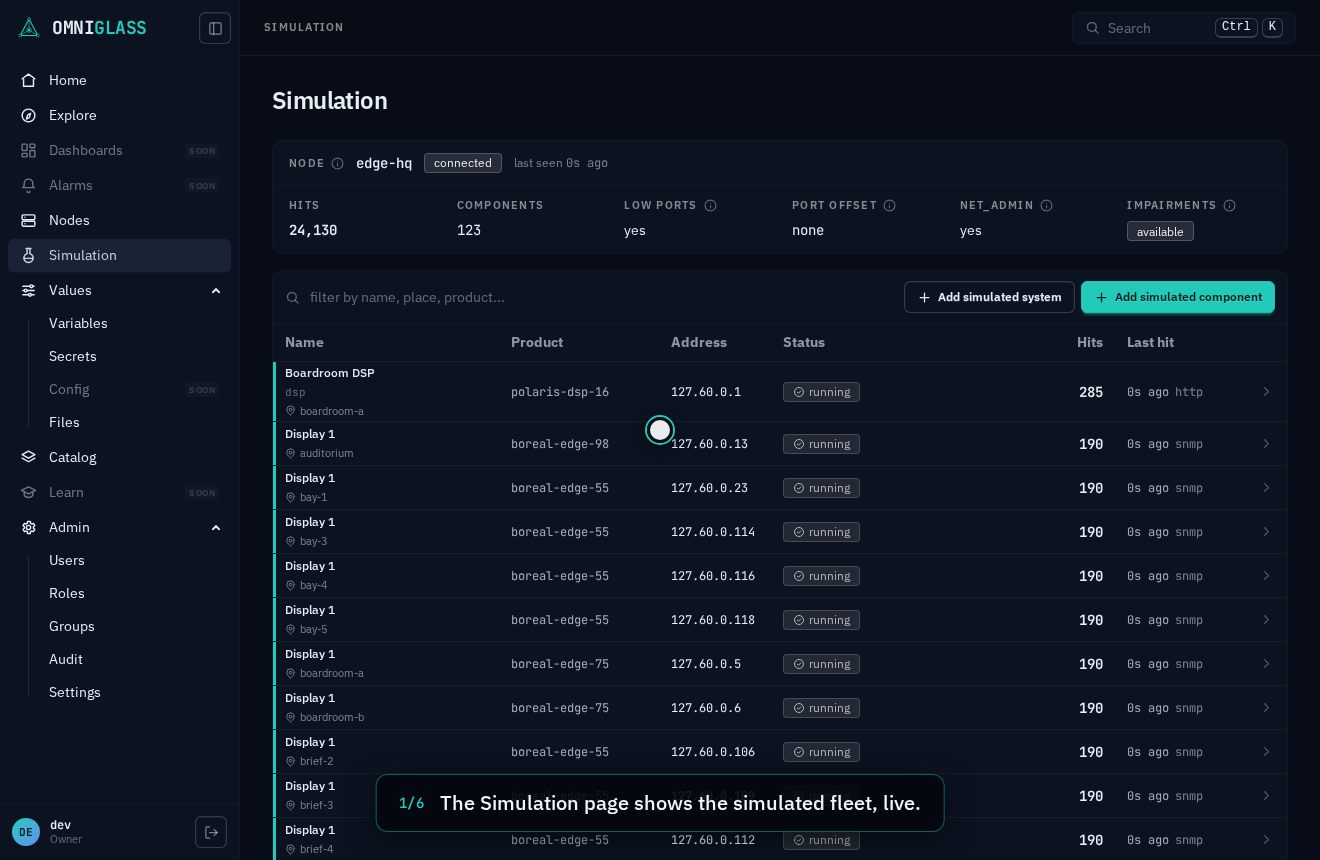
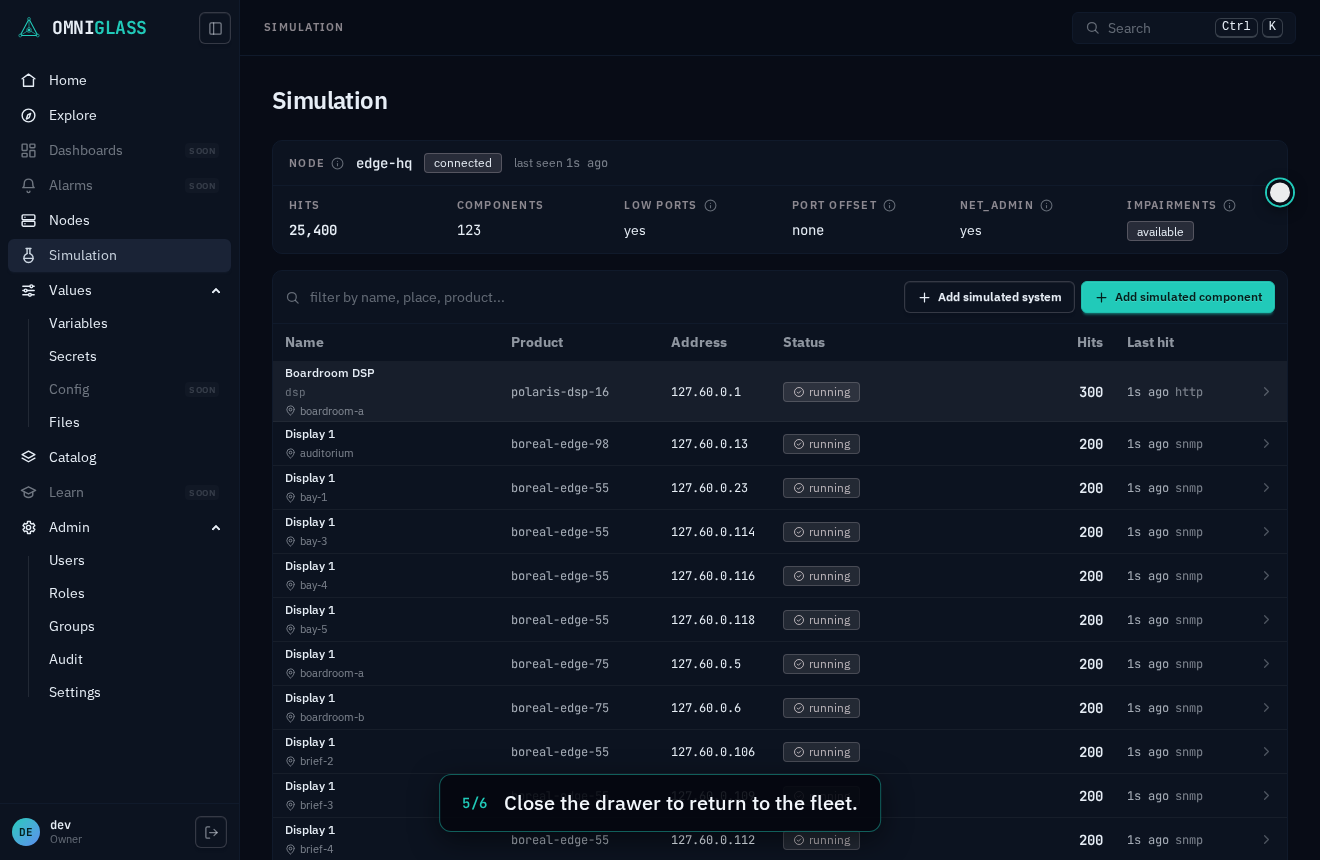
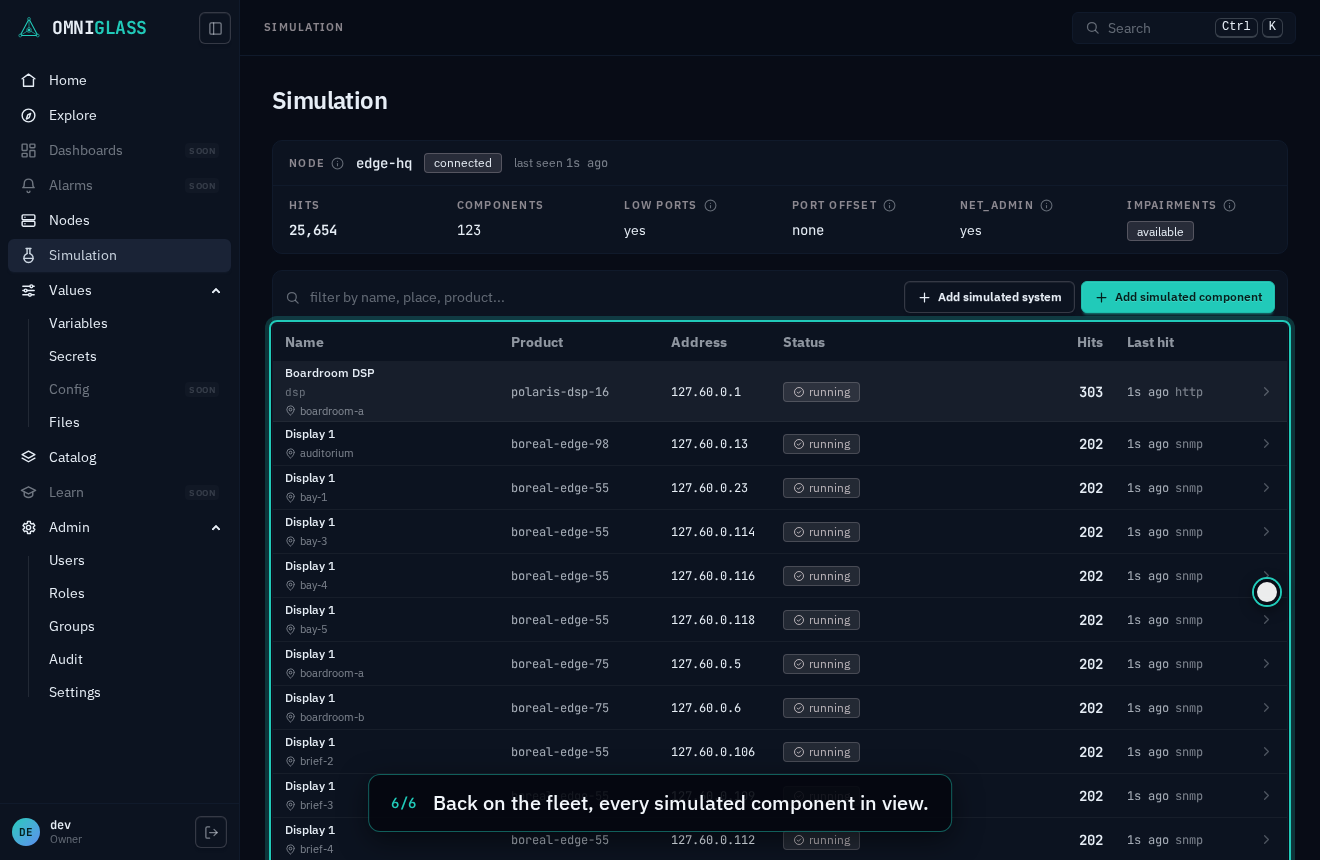
components: a technician scoped to a building sees that building’s simulated components. The page has a card per node with a simulator, saying whether it is connected, its total
hits and components, what it may do where it runs (Low ports: bind ports below 1024; Port offset:
the lift it applies when it cannot; NET_ADMIN), and whether it can apply impairments (and if not,
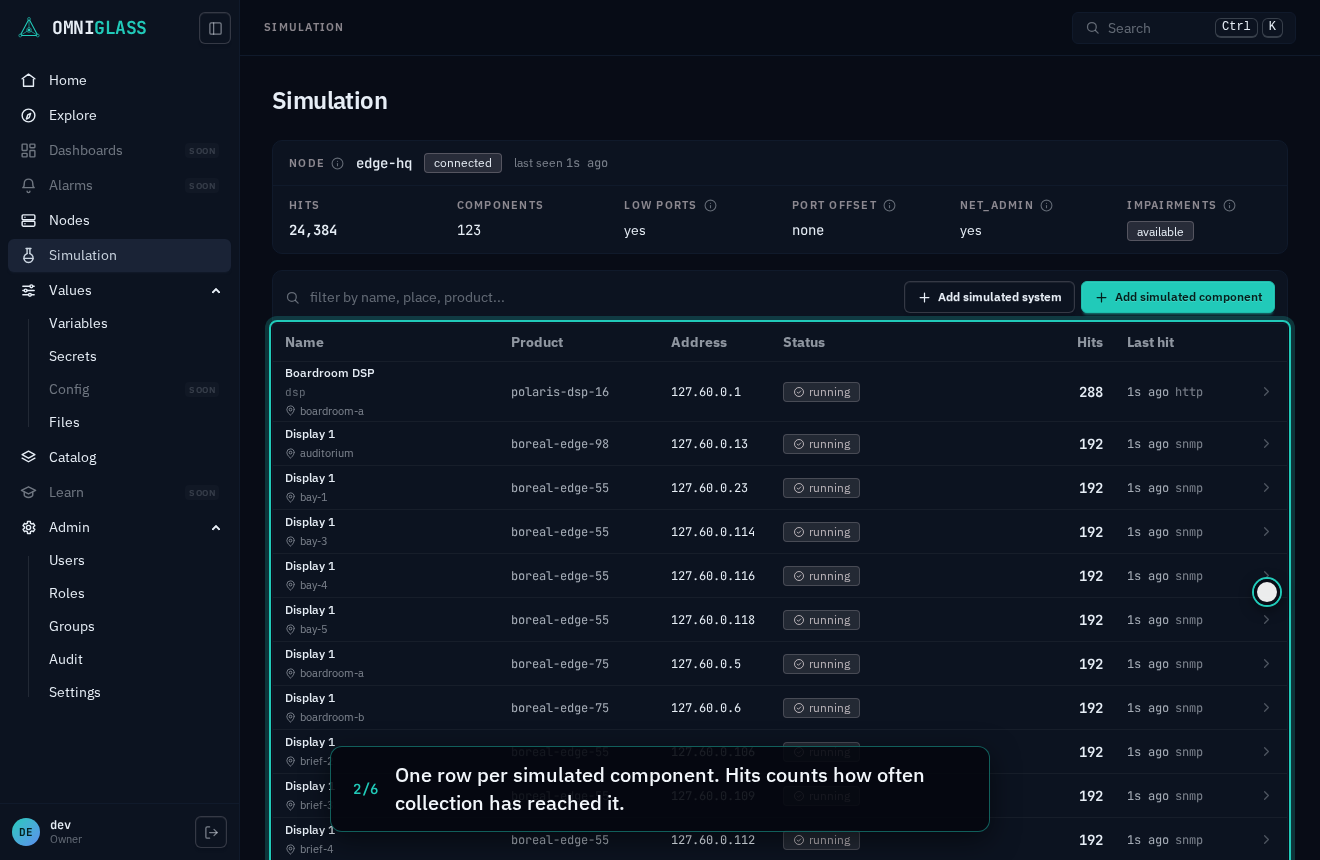
why). Under it, a table lists every simulated component with its product, address, status, hits and
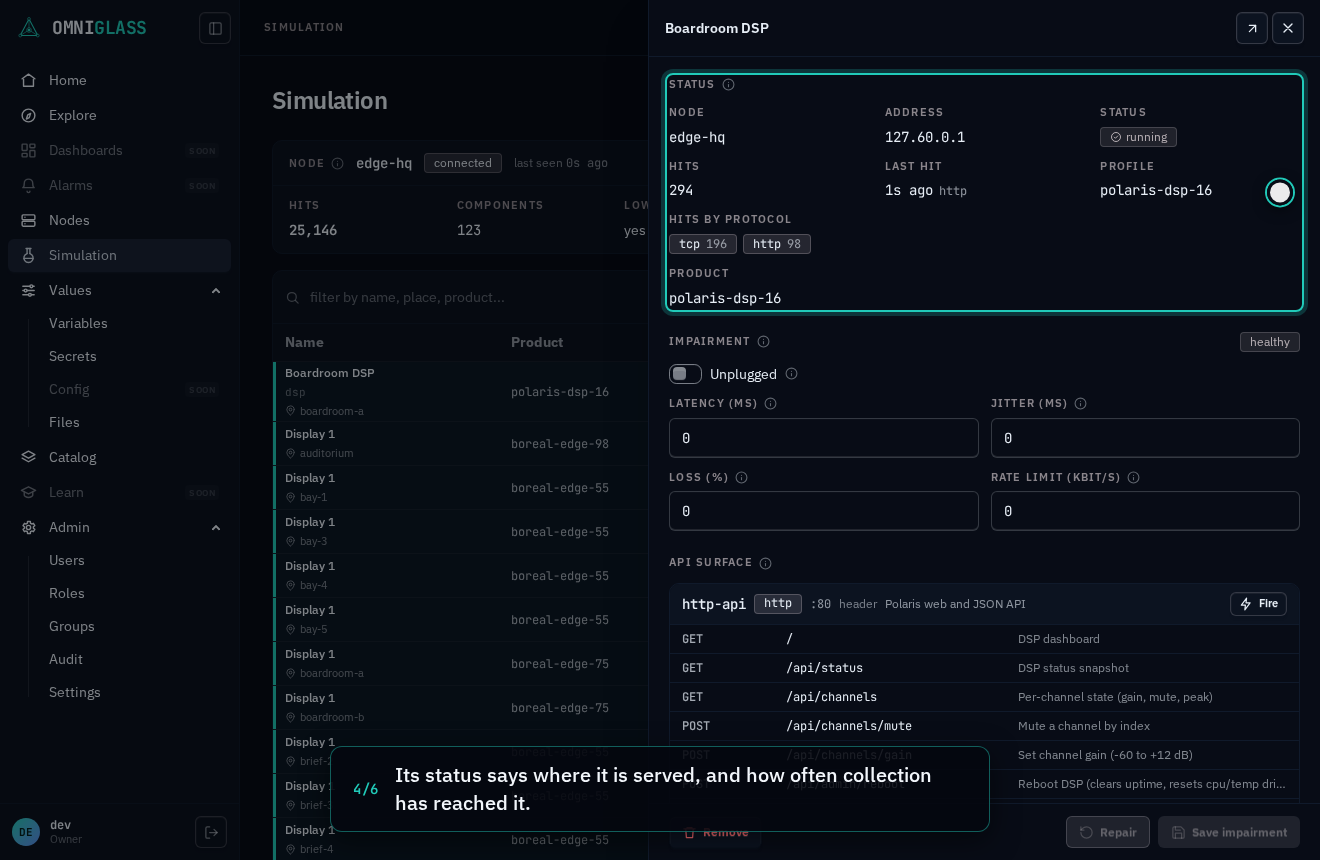
last hit. The status says what the simulator is doing with it: running; starting (added since
the simulator’s last pull, so it begins within about ten seconds); failed (handed to the simulator,
which could not start it: a port it cannot bind, or an address that is not loopback); or offline (the
simulator stopped reporting). Anything you broke on it shows as a chip beside the status
(unplugged, or the delay and loss you set), with a note when the simulator could not apply it, and a row lights up each time the collector reaches the component: a
poll, a connect, a ping. A row that never lights up is a component nothing is collecting from.
When no simulator is connected the entry is hidden, since there is nothing to show.
Every step, captioned (6 steps)
The Simulation page shows the simulated fleet, live.
One row per simulated component. Hits counts how often collection has reached it.
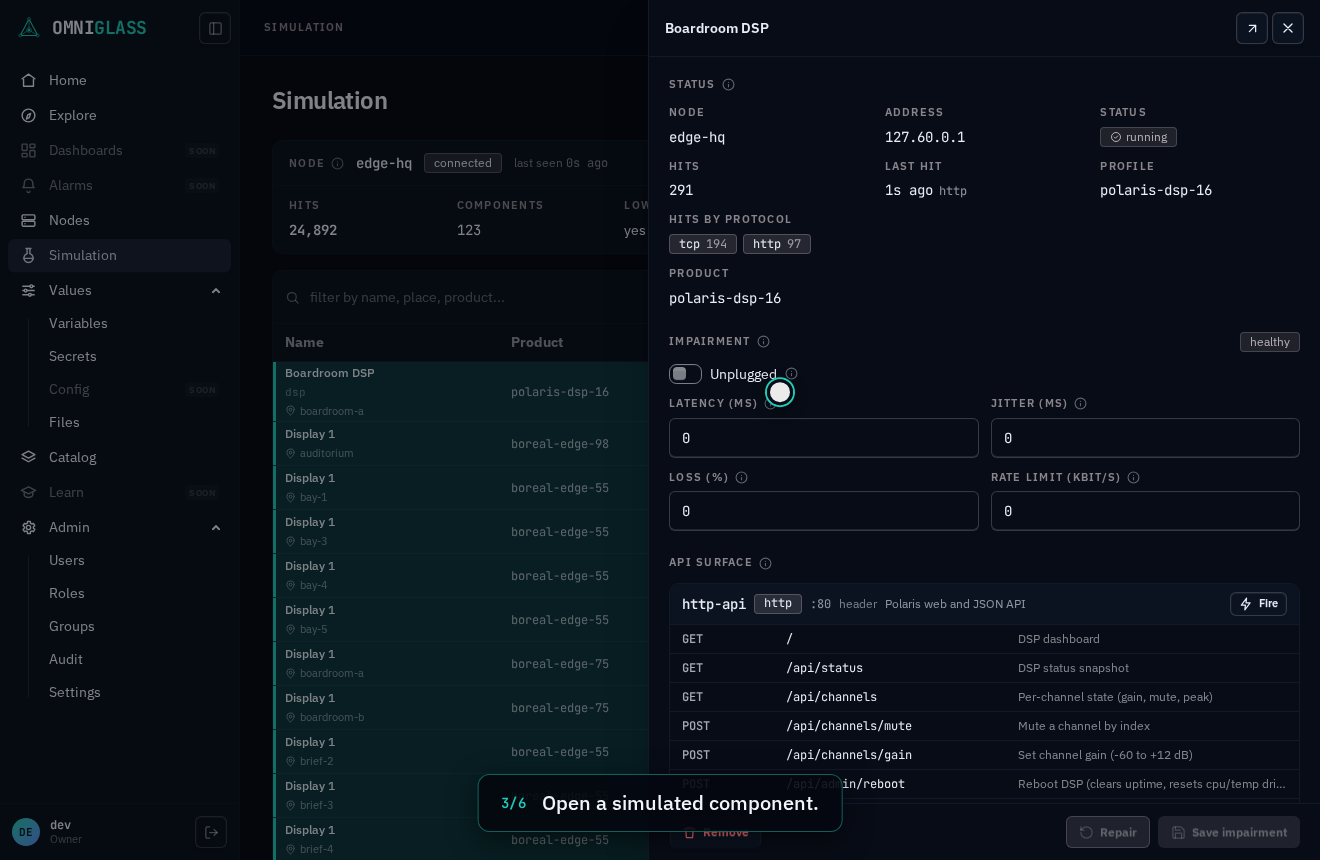
Open a simulated component.
Its status says where it is served, and how often collection has reached it.
Close the drawer to return to the fleet.
Back on the fleet, every simulated component in view.
From a terminal the same view is omniglass simulation get, and one node’s is
omniglass node simulation <node>.
A simulated component’s own page carries a Simulation section (its node, address, hits, and anything broken on it), so the component and its simulation are one place. Open simulation opens the same simulation drawer a row on the Simulation page opens.
Exercise a component
Section titled “Exercise a component”The drawer lists the component’s whole API surface, read from its profile: each protocol surface it
serves (its protocol and the port the simulator binds), with its HTTP routes, its commands, and the
SNMP OIDs it answers. Choosing one loads the Fire form, and firing it (with simulation:update,
which operators hold) sends the operation to the simulated component and shows the answer: the HTTP status and
body, a command’s response, an OID’s value.
The simulator answers from the component’s live state, so firing a command that changes it (a panel’s
SET INPUT hdmi2) changes what the collector reads on its next poll. A fire counts as a hit, so the
row lights up. It reaches the component even when it is unplugged, so a broken one can still be
inspected. Every fire is audited.
omniglass component simulation get panel-1 # the surfaceomniglass component simulation fire panel-1 --surface nvp --command "GET INPUT" # the answerAdd a component
Section titled “Add a component”Add simulated component on the Simulation page (with simulation:update, component:create and
endpoint:create) asks for a node with a simulator, a product the simulator has a profile for (the
form lists them by profile), a name, and optionally a location. It creates the component and the
endpoint the node reaches it through, at the next free address in 127.60.0.0/16; the simulator
serves it from its next pull. From a terminal:
omniglass simulation profiles # the products it can simulateomniglass simulation add-component edge-hq --name panel-9 --product newtron-panel-7In the drawer, Product and Change move a component among the products its profile simulates (a
display line in its sizes, say), which keeps its endpoint valid (with component:update), and
Remove deletes the component after a confirmation, which removes it from the simulation (with
component:delete).
Add a whole system
Section titled “Add a whole system”A simulated system is built to one of your standards (a meeting room, a huddle room, a digital sign). Omniglass staffs each of the standard’s roles with a simulated product that fits it, and lists the roles it cannot fill yet, which stay short so the system honestly reads that way. On the Simulation page, Add simulated system asks for a node, a standard, a system type, and optionally a place and a name; choosing the standard previews its plan (each role, the product it gets and how many, and any short role with its reason) before anything is created. From a terminal, preview the plan, then add it:
omniglass simulation plan-system meeting-roomomniglass simulation add-system edge-hq --standard meeting-room --system-type meeting --location boardroom-aThe system and its components land together or not at all (with simulation:update, plus
system:create, system:update, system:read, component:create, endpoint:create and node:read; component:create must
reach the whole fleet, since the components are created at the top level), named as any new system and
component are named, and the simulator serves them from its next pull.
Break it on purpose
Section titled “Break it on purpose”The drawer’s Impairment controls (with simulation:update) break the component the way real gear
breaks:
- Unplugged: dark on every protocol. Connects time out, pings go unanswered.
- Latency and jitter: a delay, with variation, on traffic toward the component. It shows in the collector’s connect times.
- Loss: a share of packets toward the component dropped.
- Rate: a bandwidth limit on the component’s link, both ways.
Save impairment sets the whole impairment at once (a field left empty is zero), and Repair clears it. The simulator applies it on its next pull, and the component’s Reachability panel shows the collector seeing it: unplug a component and its TCP and ping checks go down; plug it back and they recover.
Impairments apply only on a simulator started with --impairments and holding NET_ADMIN, since
they rewrite the firewall and traffic shaping of its network namespace. Without that the setting
still saves, and the node’s card says why it is not applied. With it, ping tells the truth: an
address that no component answers on stops answering ping.
omniglass component impairment set panel-1 --unplugged # dark on every protocolomniglass component impairment set panel-1 --latency-ms 300 # slow (and plugged back in)omniglass component impairment set panel-1 # repairedUnplugging closes the monitoring loop with nobody in between. Once the component’s endpoint has
read down for the official reachability rule’s fire sustain (the shipped rule),
the rule opens an alarm at its severity on it, the component goes to outage and stops filling its roles, and its system’s verdict follows (degraded or
out, as the role’s impact says). Catalog > Actions > Rules shows the rule’s open alarm while it
lasts. Repair it and the next up reading clears the alarm and the verdict recovers. The
rules guide walks the same loop with a rule of your own.