

Sign in and your profile
Signing in
Section titled “Signing in”Sign in with your username and password. On success the server sets an httpOnly session cookie (the browser never exposes a token to scripts), and the cookie rides on every request for the rest of the session. Sign out from the menu in the sidebar footer, which revokes the session and clears the cookie.
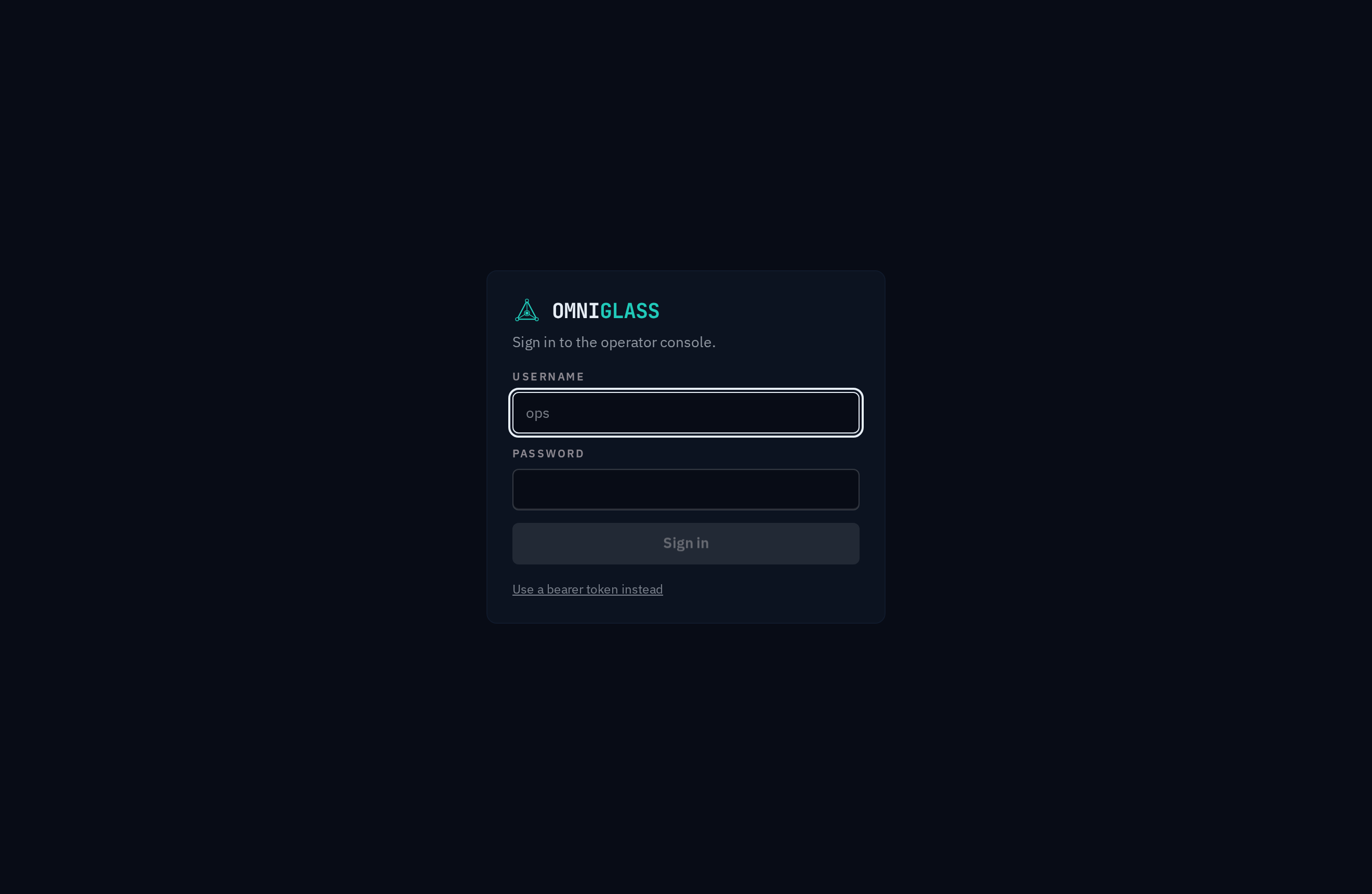
The login screen also has a “Use a bearer token instead” toggle: paste a token (for a
service account, or an operator who works from the CLI) and the console authenticates with the
Authorization header rather than a password. Either path lands you in the same console.
The first owner is created on the server with
omniglass bootstrap <username> --password <password> (see the CLI guide).
Your profile
Section titled “Your profile”Click your name in the sidebar footer to open Your profile. It is self-service: you edit only your own account, whatever your role.
- Profile. Change your label; it drives how you appear in the console (the sidebar label and the initials avatar). Your username and email are set by an administrator, not you, and are shown read-only.
- Profile picture. The avatar at the top of the panel shows your picture when you have one and your initials when you do not. Upload picks an image file (JPEG, PNG, or WebP); the server crops and re-encodes it to a small square, so it reads the same everywhere you appear (the sidebar and the Users directory). Remove clears it and falls back to initials. Like the rest of the page it is self-service: you manage only your own picture.
- Change password. Enter your current password and a new one. The new password must meet the policy (at least 12 characters, not a common password, and not containing your username); the field validates as you type, and Generate fills a strong random one you can Copy. A wrong current password is refused. Changing it signs out your other sessions (the one you are using stays, and your API tokens are kept, a token not being tied to your password), so the change takes effect on your logins at once.
- Access. A read-only view of the identity model you operate under: your principal, the roles granted to you, and the flattened permissions those roles carry. The server enforces these on every request; the console only mirrors them.
- Sessions and API tokens. Two sections listing every credential you hold: a session is a
device you signed in from, a token one you minted for the CLI or API, both time-bounded and
showing an expiry. Each row shows a device (parsed from the browser that created it), the
address it came from, and when it was last active; a token also shows its description. The
one you are using is marked This session. The secret is never shown, only its
ogp_locator. Revoke any you do not recognize (revoking the one you are using is Sign out), or use Revoke all on either section to end every session or every token at once, keeping the one you are on. Create token on the API tokens section mints you a new token: give it a description (what it is for, required) and an optional lifetime in days (default 90, maximum 365). The token is shown once, so copy it then; it cannot be retrieved again.
From the CLI the same actions are omniglass auth update-profile, omniglass auth change-password,
omniglass auth set-avatar / omniglass auth remove-avatar for the picture,
omniglass session list / session revoke <session-id> / session revoke-all for your sessions, and
omniglass auth create-token --description <what-for> to mint one for yourself (see
the CLI guide).
After an administrator resets your password
Section titled “After an administrator resets your password”If an administrator resets your password, you sign in with the password they gave you and the console immediately gates you to a Set a new password screen: your account is on hold and every other page is refused (by the server, not just the console) until you choose a new password. Enter the temporary password as the current one and set a new policy-compliant password; once it is saved the hold clears and you land in the console. Signing out is the only other way off the screen.