

Rules and severity
Catalog, under Actions: Rules (with rule:read) is where alarms come from when nobody raises
them by hand, and where what happened is recorded when nobody needs paging. An event rule watches
one property or metric on the components it selects. When the value meets its fire criteria for
long enough, its condition comes into force on that component: it writes an event and, when it
has a severity, opens an alarm; when the value meets its clear criteria the condition ends, with
its own event, and the alarm clears. A rule with no severity is informational: it writes its
events and pages nobody. The alarm it opens is an ordinary alarm: it takes its
component’s verdict down, a system role the component fills stops counting it while it is out, and
it can be acknowledged like any other (alarms on a component).
How the evaluator works is on alarms and actions.
Beside it, Catalog, under Actions: Severity (with severity_level:read) lists the levels a rule
raises at, and is where you add your own (with severity_level:create on an all-scope grant).
Catalog, under Actions: Calc rules derives values from others for rules like these to judge
(calc rules).
Rules read like a registry: any grant carrying rule:read, wherever it is scoped, lists every
rule. The live counts and a rule’s open alarms and streaks name components, so they cover only the
components you may read. Writing a rule is fleet-wide, since its selector reaches every component:
a caller who holds rule:create only on a grant bounded to a place or system is not offered New
rule (nor Edit, Disable or Delete without the matching permission on an all-scope grant), since the
server would refuse the write.
The rule that ships
Section titled “The rule that ships”One rule ships with Omniglass, rendered here from the seed itself:
| Rule | Reads | Fires | Clears | Writes | Severity |
|---|---|---|---|---|---|
reachability-lost (Reachability lost) | endpoint-reachable | value == "down" for 15s | value == "up" | condition-started, condition-ended | high |
It is official: it updates with Omniglass, so it is read-only, and the blade greys Edit and
Delete with that reason. It is what makes an unplugged component move its system: unplug a
simulated component (simulate a fleet) and, once
its endpoint has read down for the rule’s fire sustain (above), the rule’s row on the Rules page
shows 1 open, its blade lists the component and the endpoint, and the component and its system
carry an alarm at the rule’s severity with its label as the message. The sustain is timed from the
server’s receipt of the first down sample, and judged on the server’s 5s sweep tick, so the alarm
opens up to a tick after the sustain runs out. Opened from its system, the component’s blade names the
rule beside the alarm (by rule reachability-lost), so an alarm a rule raised is never mistaken
for one a person raised. Plug it back in and the next up reading clears it.
A person can clear a rule’s alarm by hand, and the hand clear holds until the condition ends and
returns: the rule acts on edges, not on every sample, so a component that keeps reporting down
does not reopen it. The rule’s condition stays in force and the events it wrote are untouched; once the
component reads up the condition ends, and the next time it goes down (for the sustain) the rule
opens a new alarm.
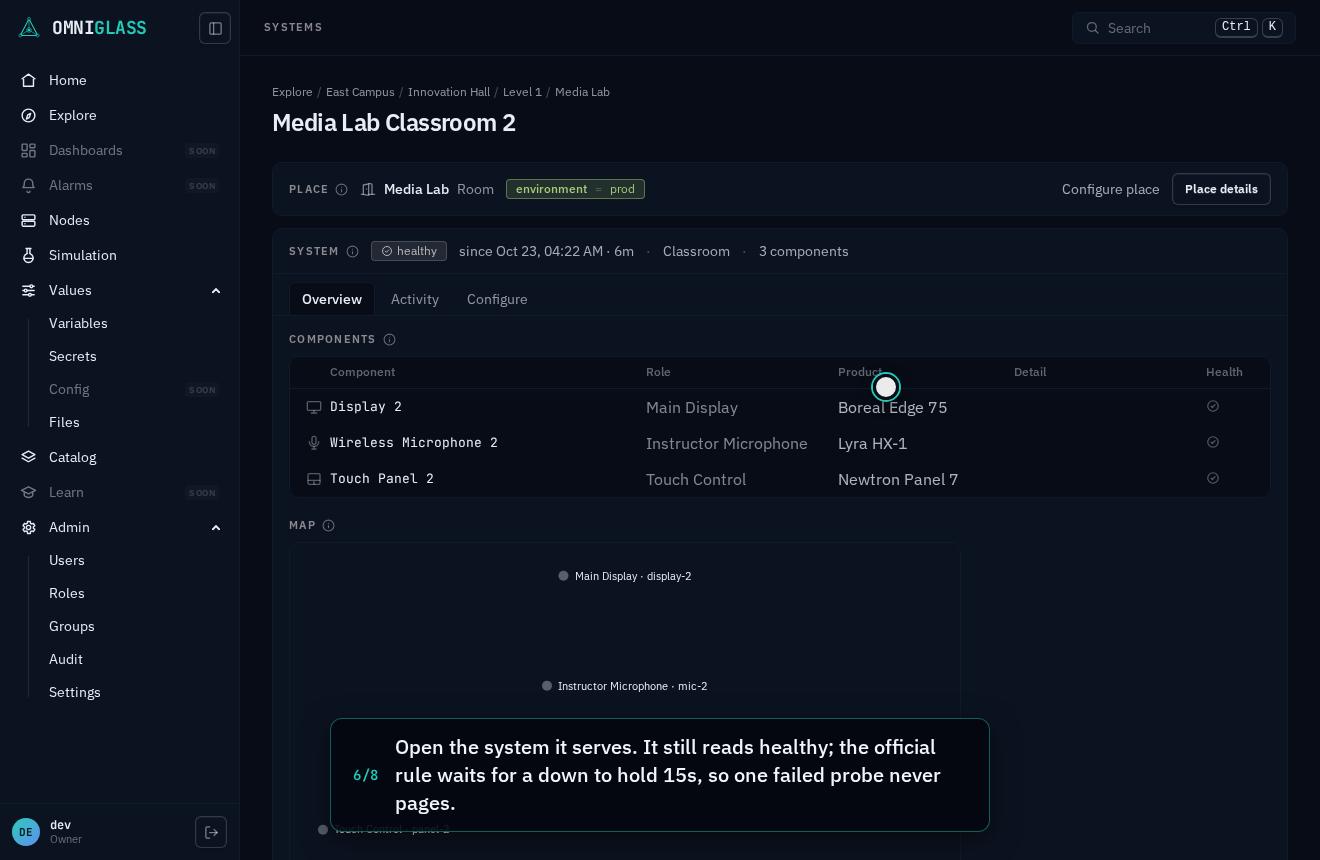
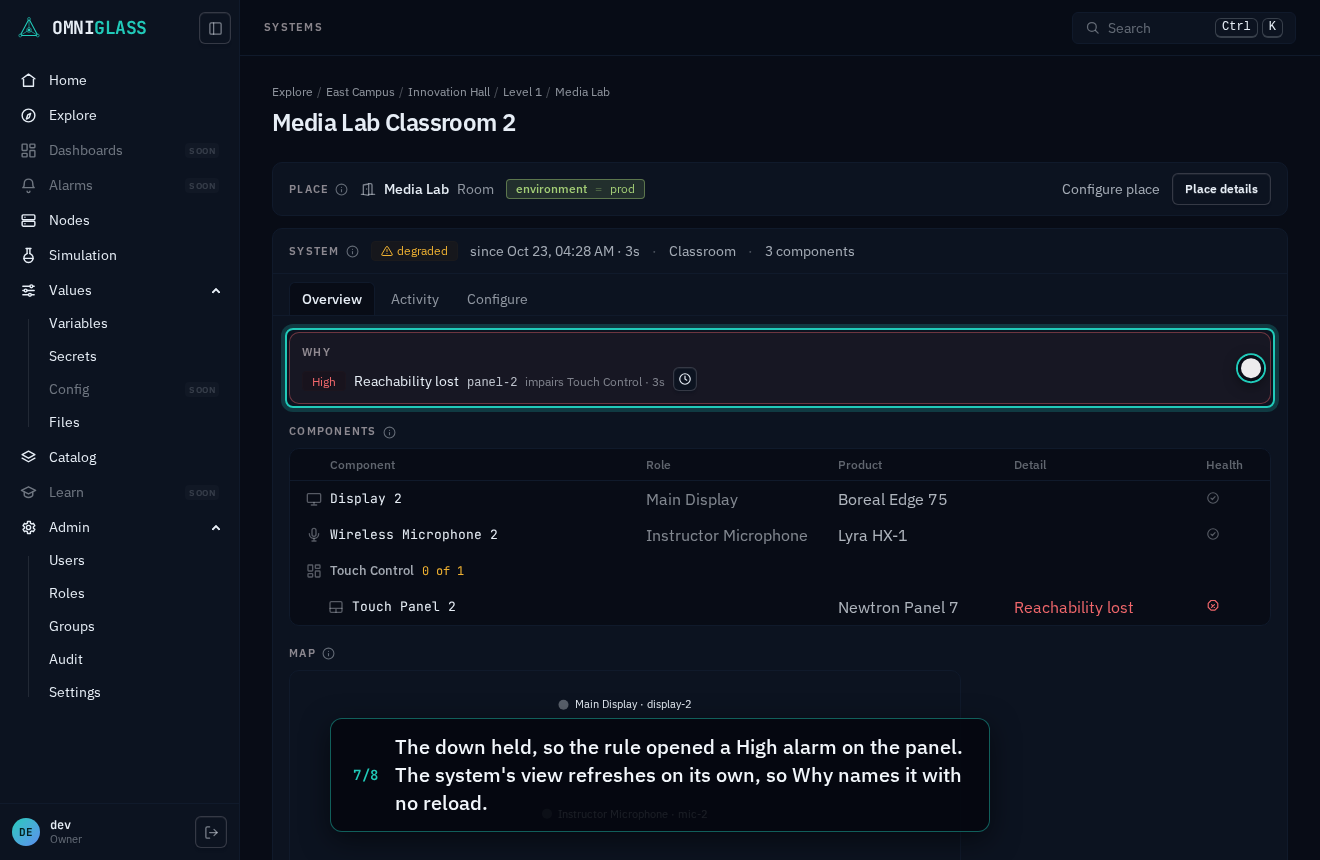
The walkthrough below unplugs a simulated touch panel, opens the system it serves, and watches it live: the system reads healthy while the rule waits out the sustain, then the rule’s alarm lands in Why and the system goes degraded, with no reload. The rule’s own blade shows the same story from its side (the streak pending, then the open alarm), and an alarm’s event on the system’s Activity names the rule that wrote it and opens it. Plugging the panel back in is left out: the wait for the alarm fills most of the recording’s minute, and the replug (three clicks on the panel’s page) and the clear measured 13 to 17 seconds more, past the minute.
Every step, captioned (8 steps)
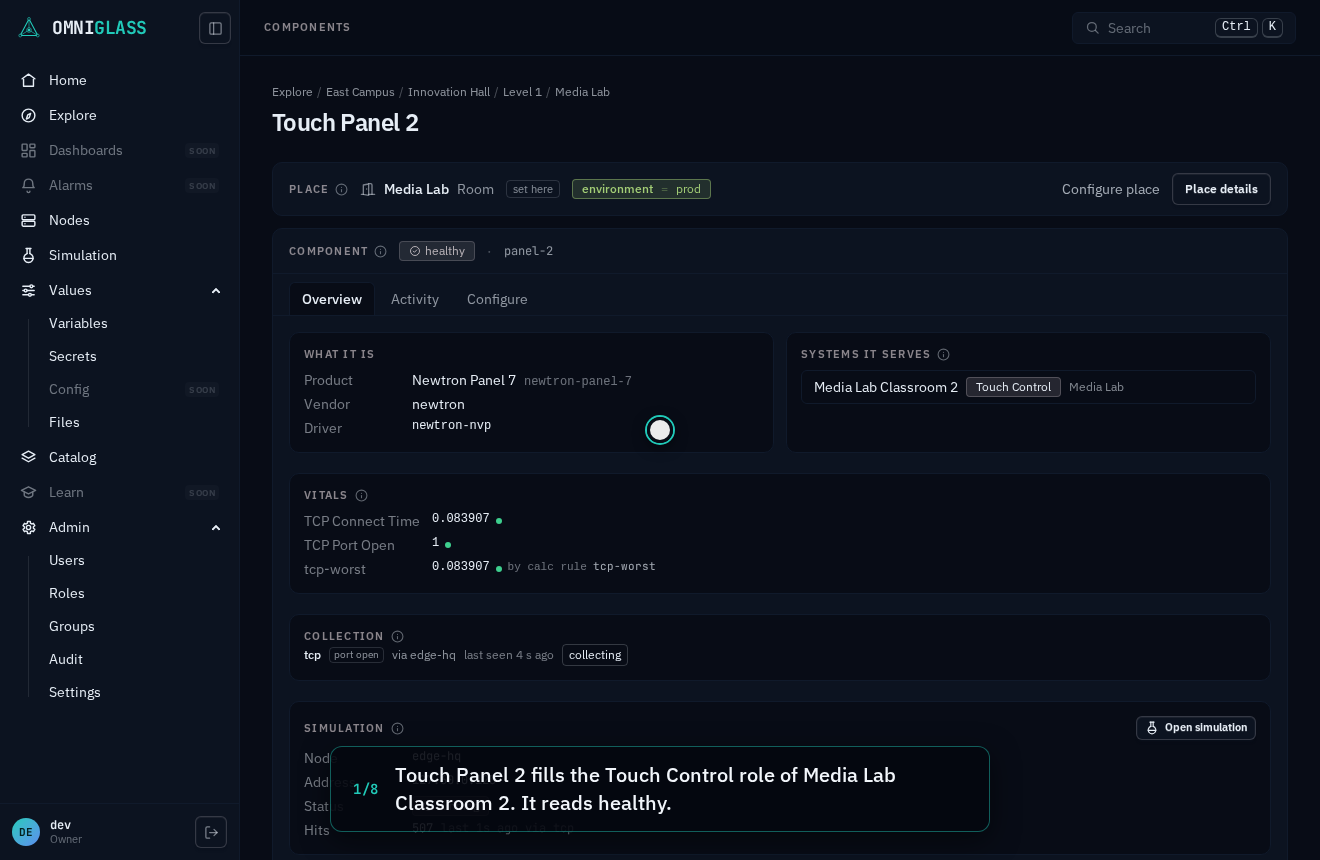
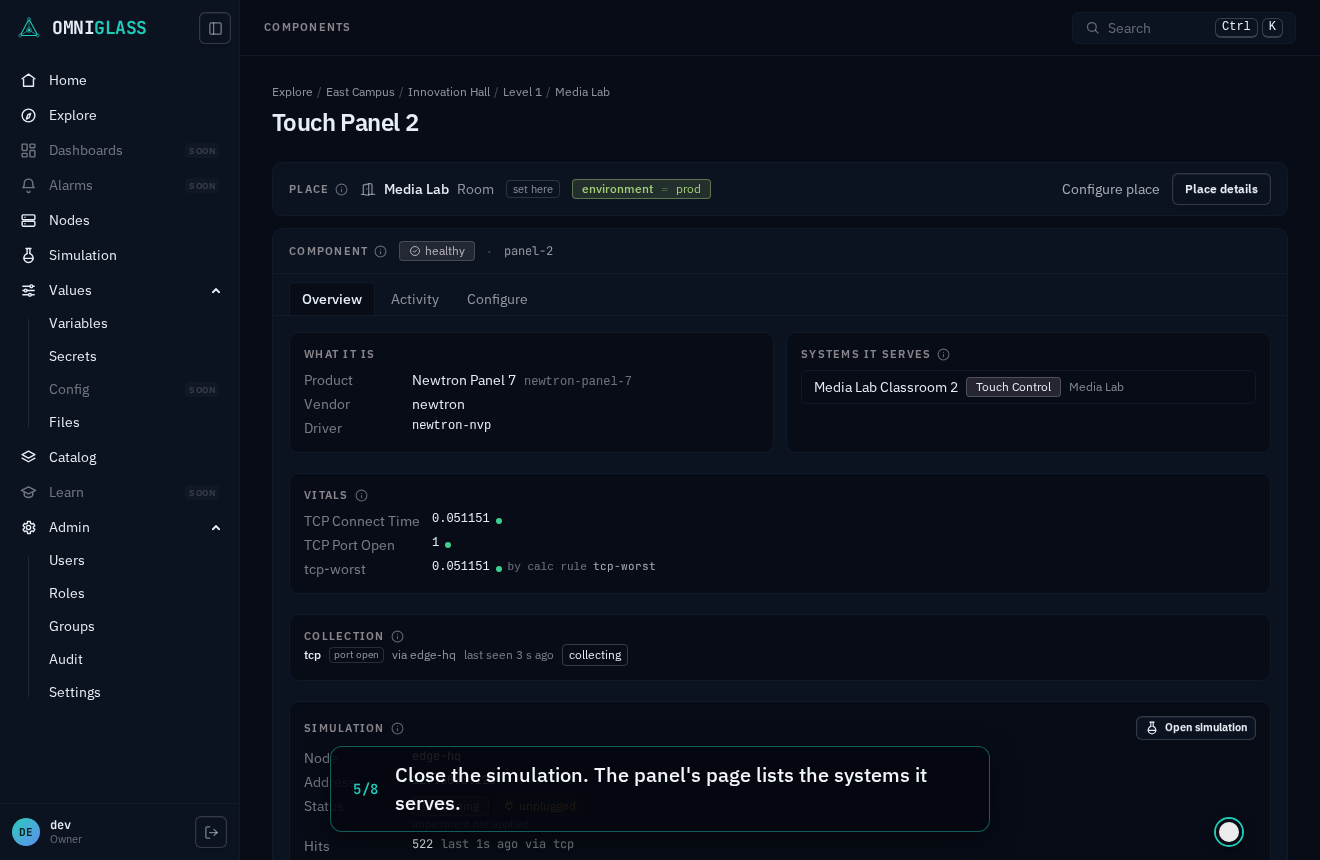
Touch Panel 2 fills the Touch Control role of Media Lab Classroom 2. It reads healthy.
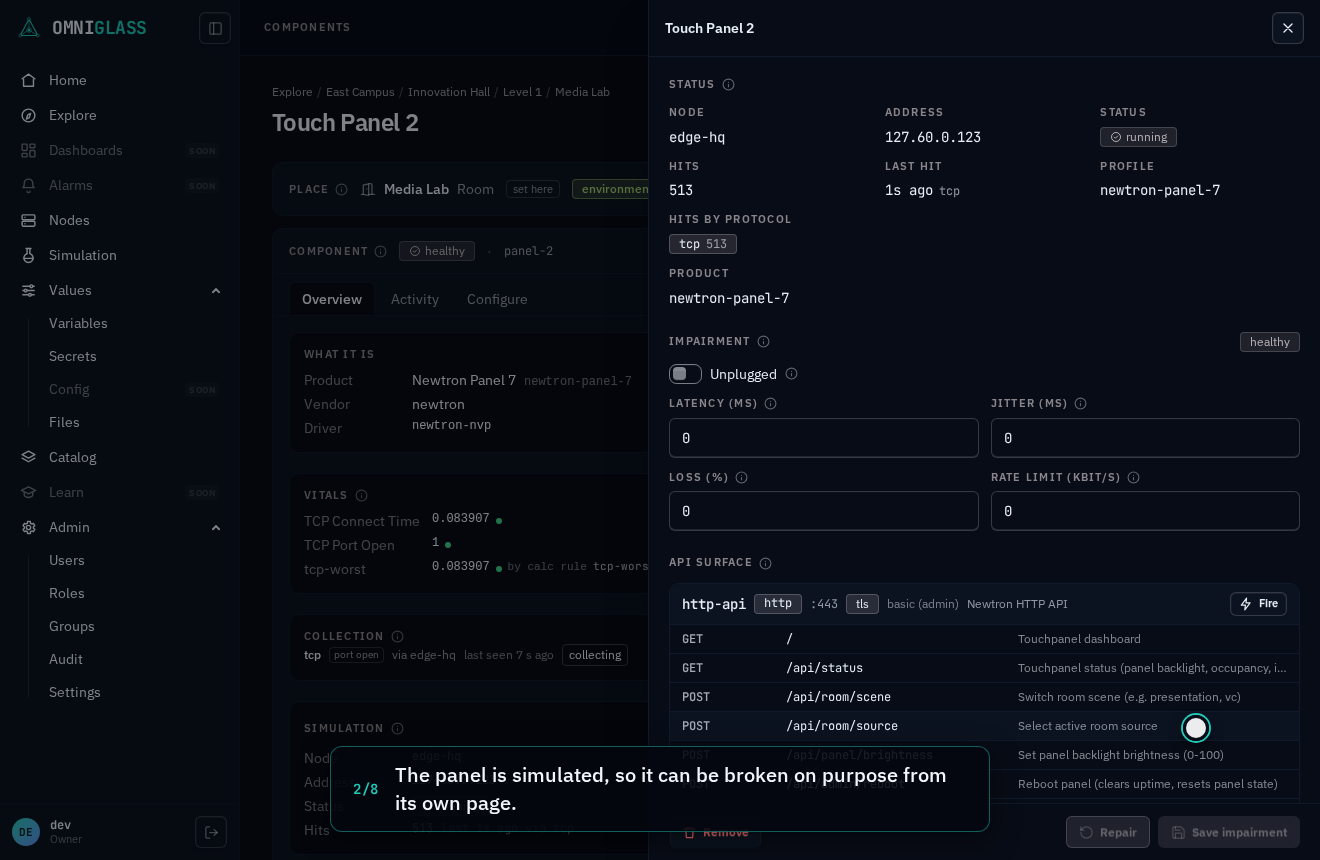
The panel is simulated, so it can be broken on purpose from its own page.
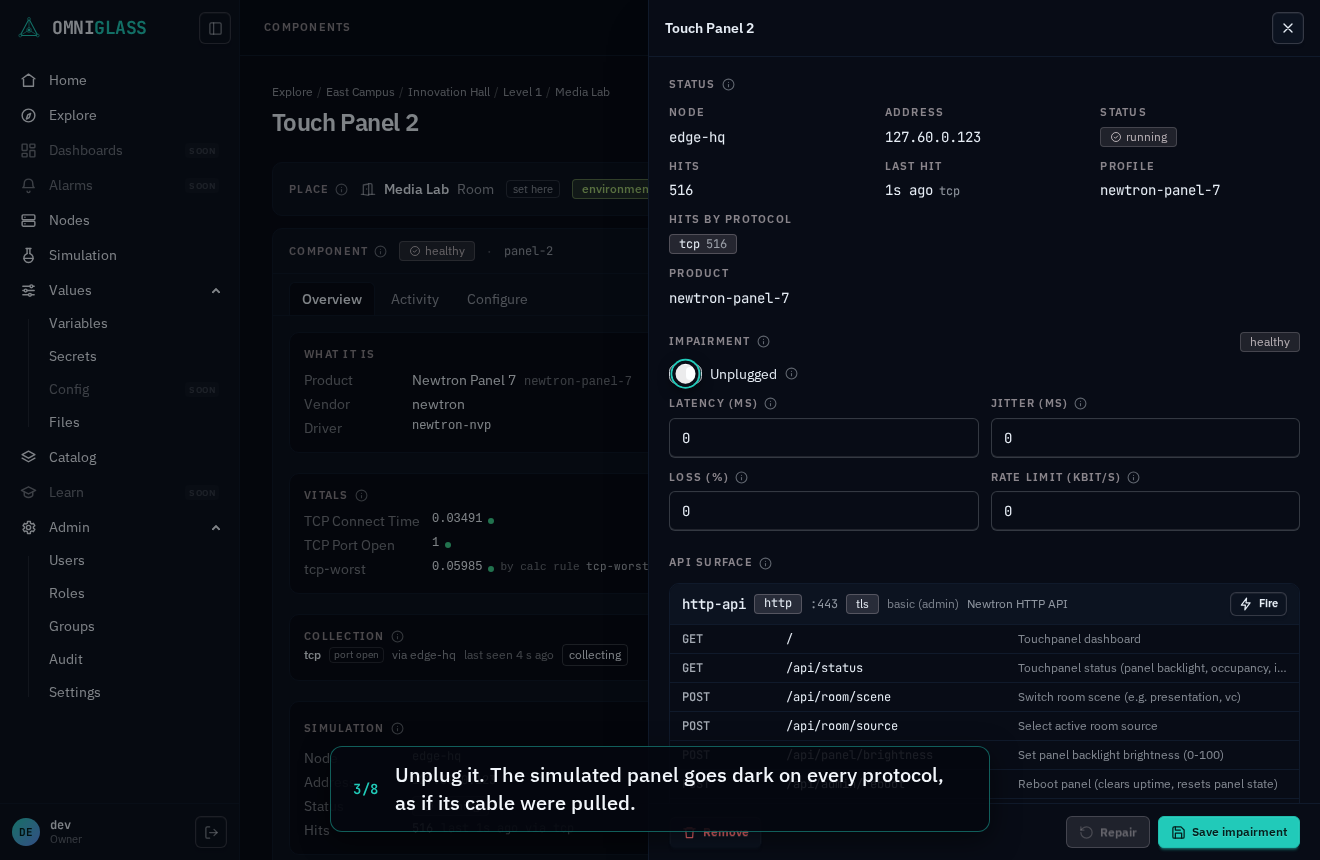
Unplug it. The simulated panel goes dark on every protocol, as if its cable were pulled.
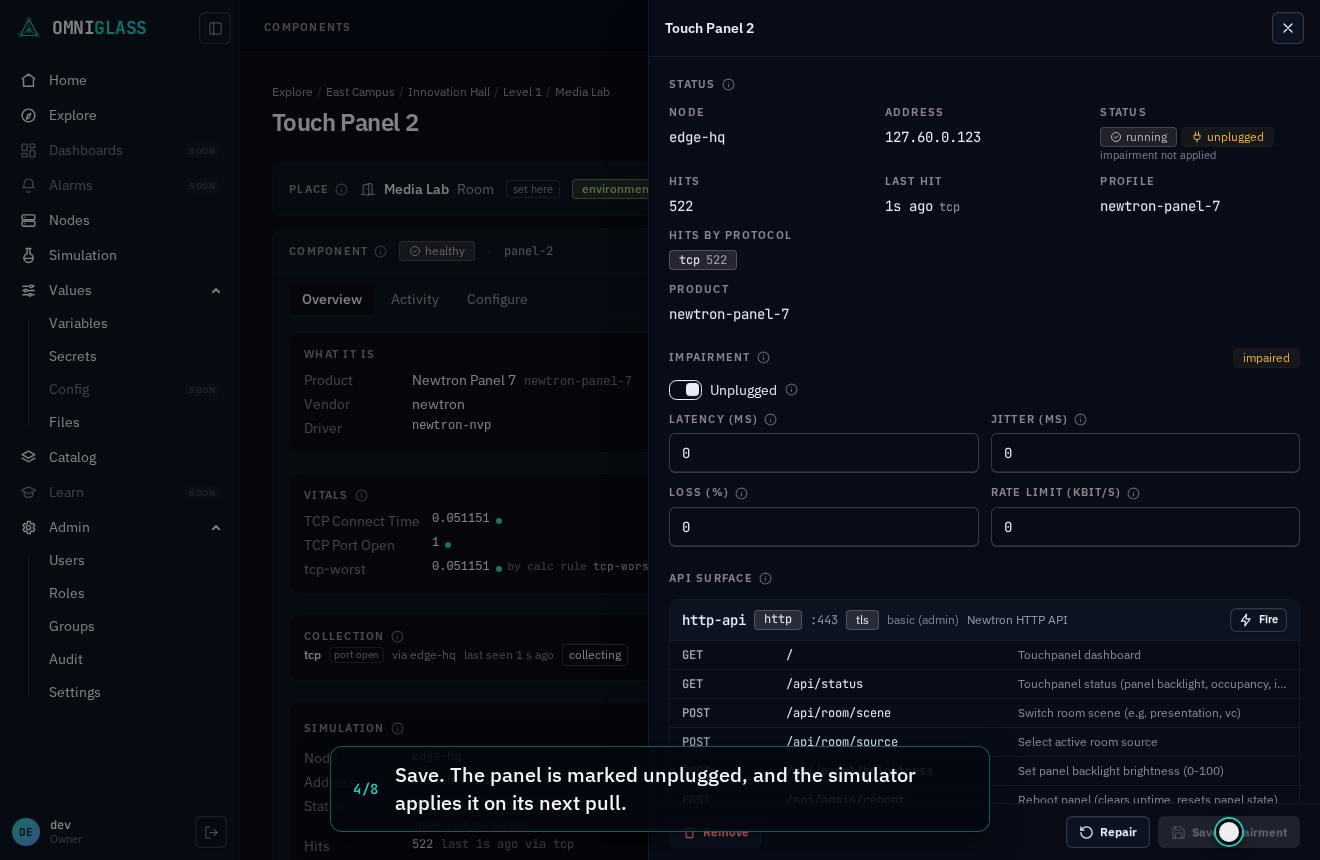
Save. The panel is marked unplugged, and the simulator applies it on its next pull.
Close the simulation. The panel's page lists the systems it serves.
Open the system it serves. It still reads healthy; the official rule waits for a down to hold 15s, so one failed probe never pages.
The down held, so the rule opened a High alarm on the panel. The system's view refreshes on its own, so Why names it with no reload.
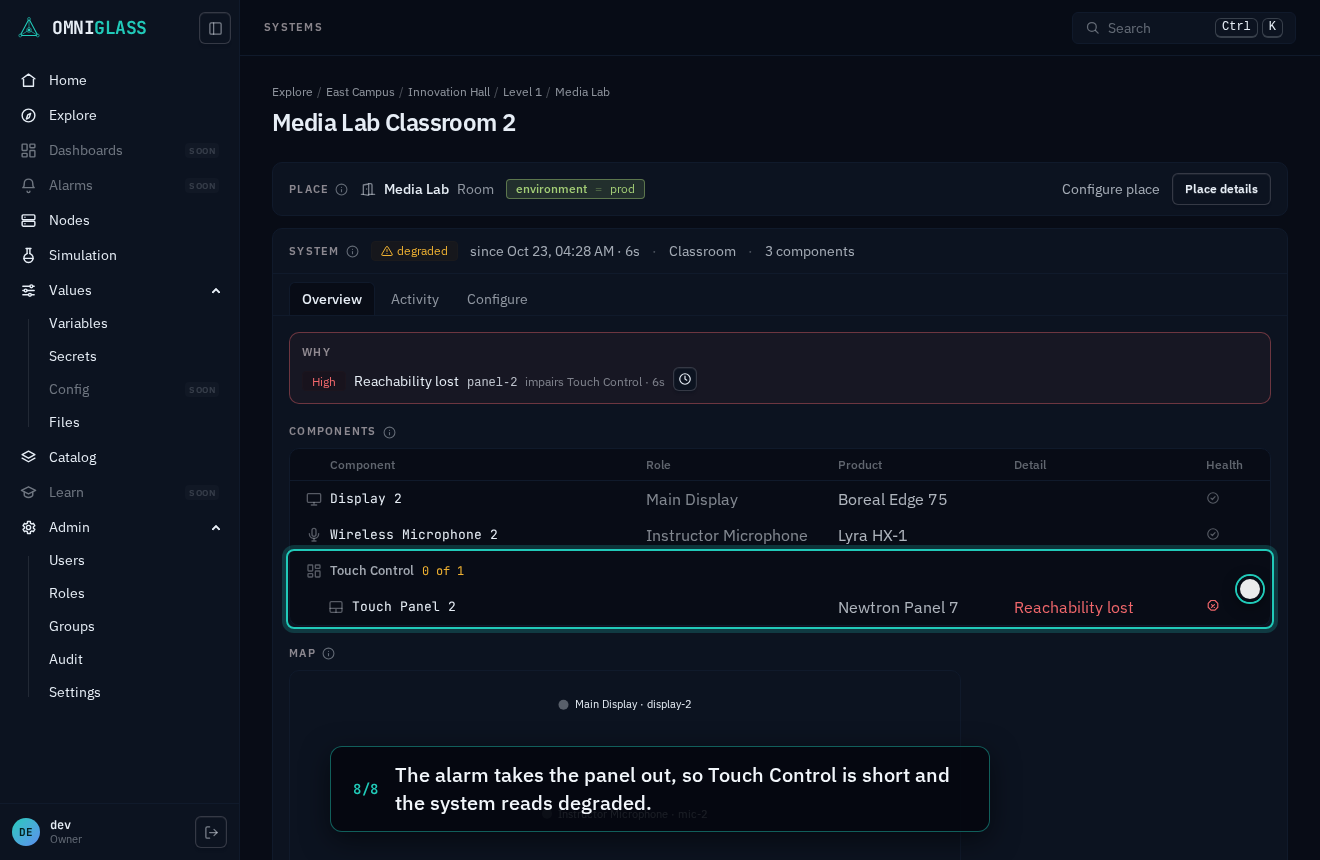
The alarm takes the panel out, so Touch Control is short and the system reads degraded.
Read the list
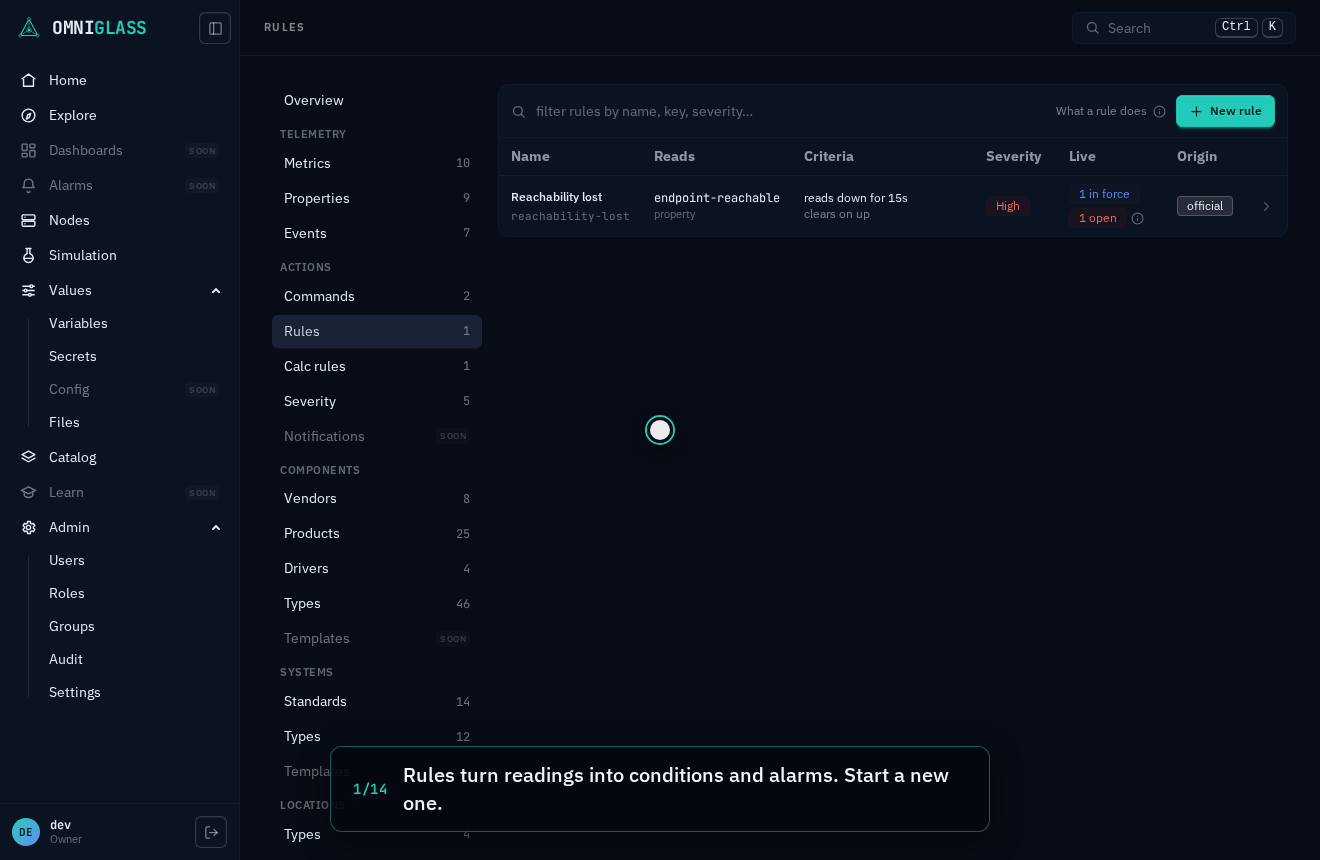
Section titled “Read the list”Each row is a rule: its name (label above), what it reads (the sample key and its lane), its criteria in words (“reads above 40 °C for 1m”, “clears on the opposite”), its severity in the level’s color (or a grey informational chip for a rule that raises no alarm), its live state, and its origin (official or custom). The live column counts ride on the list itself, which refreshes every 10 seconds:
- N in force: conditions the rule holds in force right now, one per component and endpoint. Every rule holds conditions, informational or not.
- N open: alarms the rule raised that are still open, one per component and endpoint.
- N pending: components whose samples point at fire (or clear) and are waiting out the sustain.
- disabled: the rule evaluates nothing, and holds nothing open (disabling cleared it).
- clear: enabled, and holding nothing right now.
The (i) at the end of each live cell says when the rule last judged a sample (“Last judged a sample 12s ago (to within 5s)”), or that it has not judged one yet (“Has not judged a sample yet”). That is what tells a quiet rule from a deaf one: a rule reading clear that judged a sample seconds ago is watching a healthy fleet, while one that has not judged anything for an hour reads a key that has stopped arriving (a probe removed, a collector down) and would not notice a fault. The time is to within 5 seconds, since the server writes it at most once per rule every 5 seconds rather than on every sample.
Pick a row to open its blade: the criteria, what it watches, when it last judged a sample (the Last judged fact), and the two live lists, each component linked to its own page with where it sits.
Write a rule
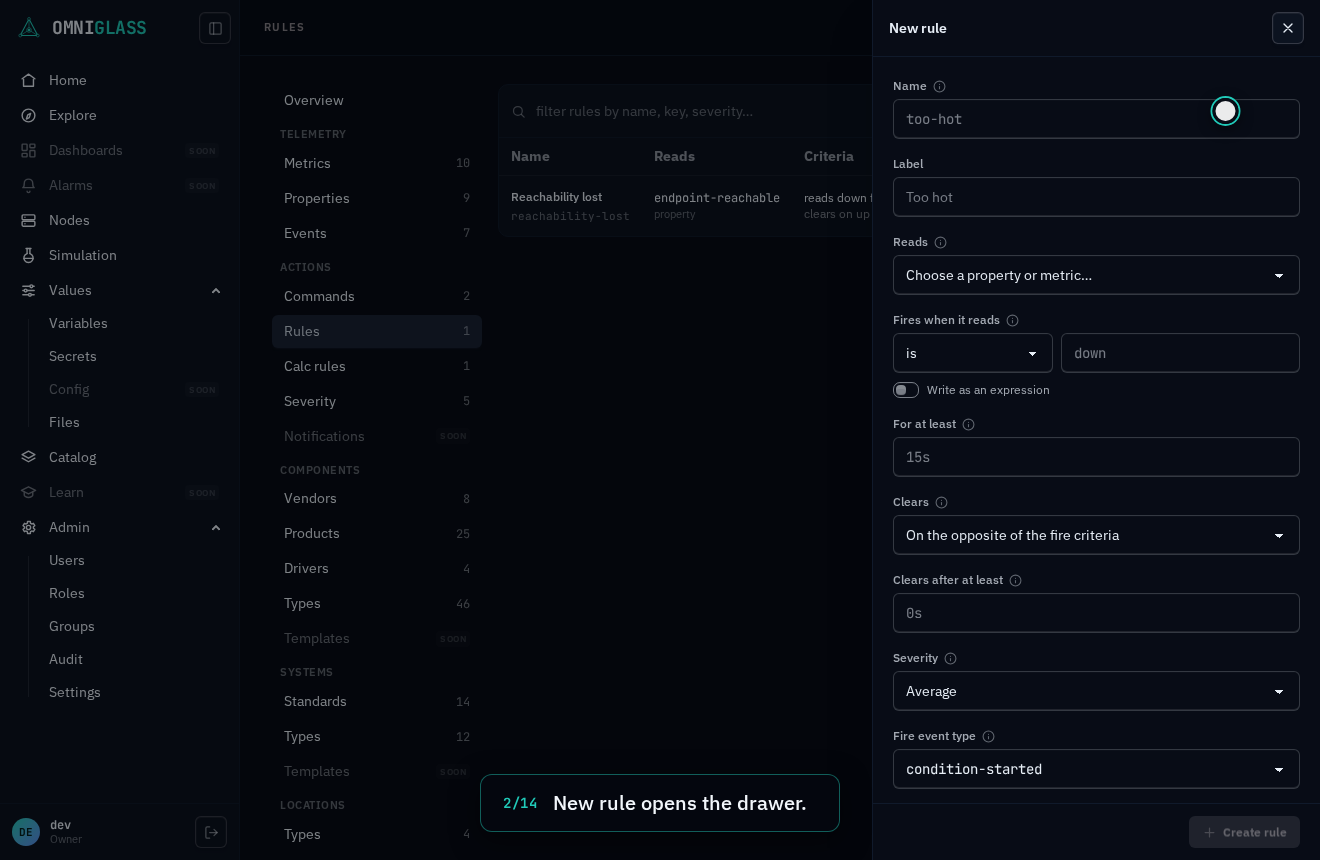
Section titled “Write a rule”New rule (with rule:create) opens a drawer. The fields, top to bottom:
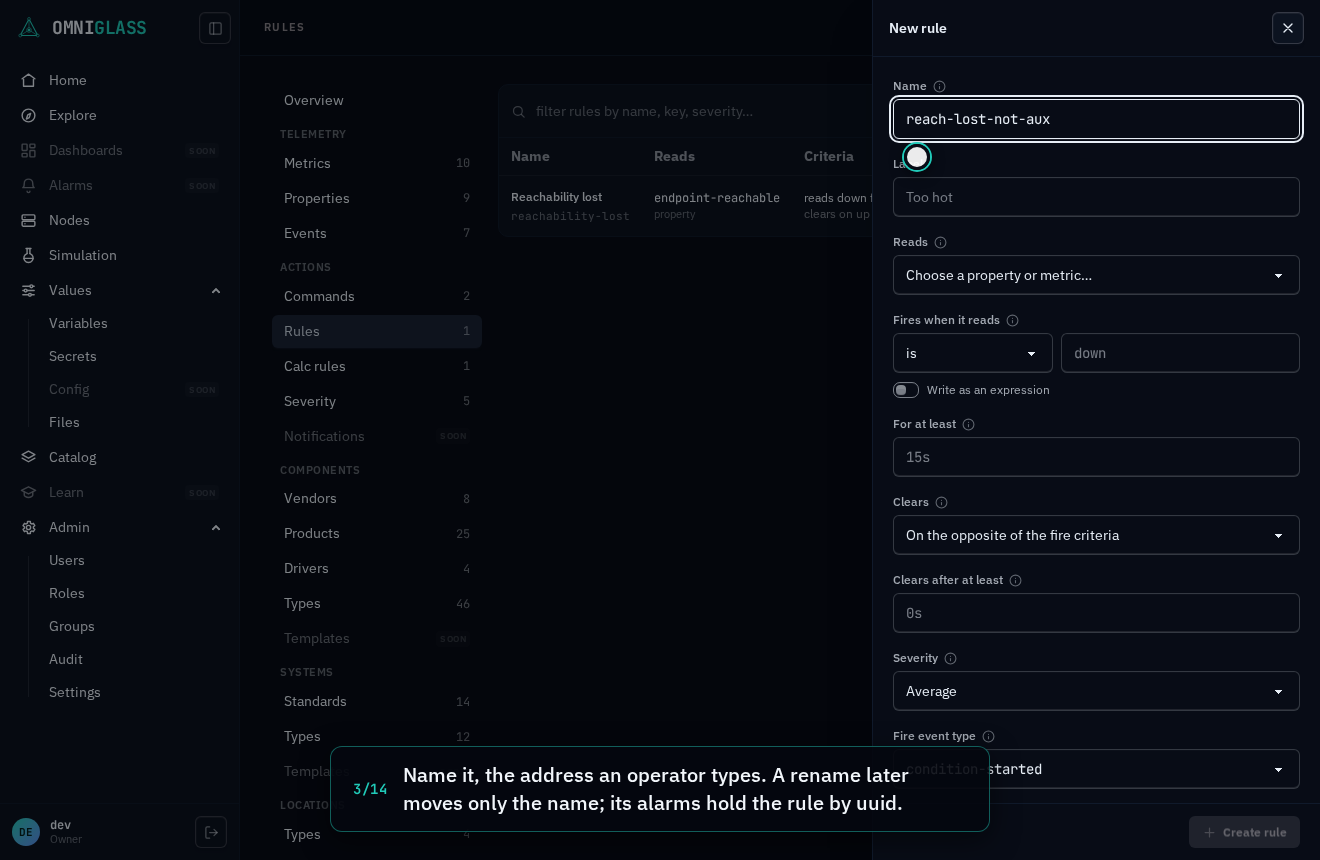
- Name: a lowercase kebab name (
input-moved), the address you type and a link carries. It can be renamed later (see Rename). - Label: optional; it is also the alarm’s message when Message is blank.
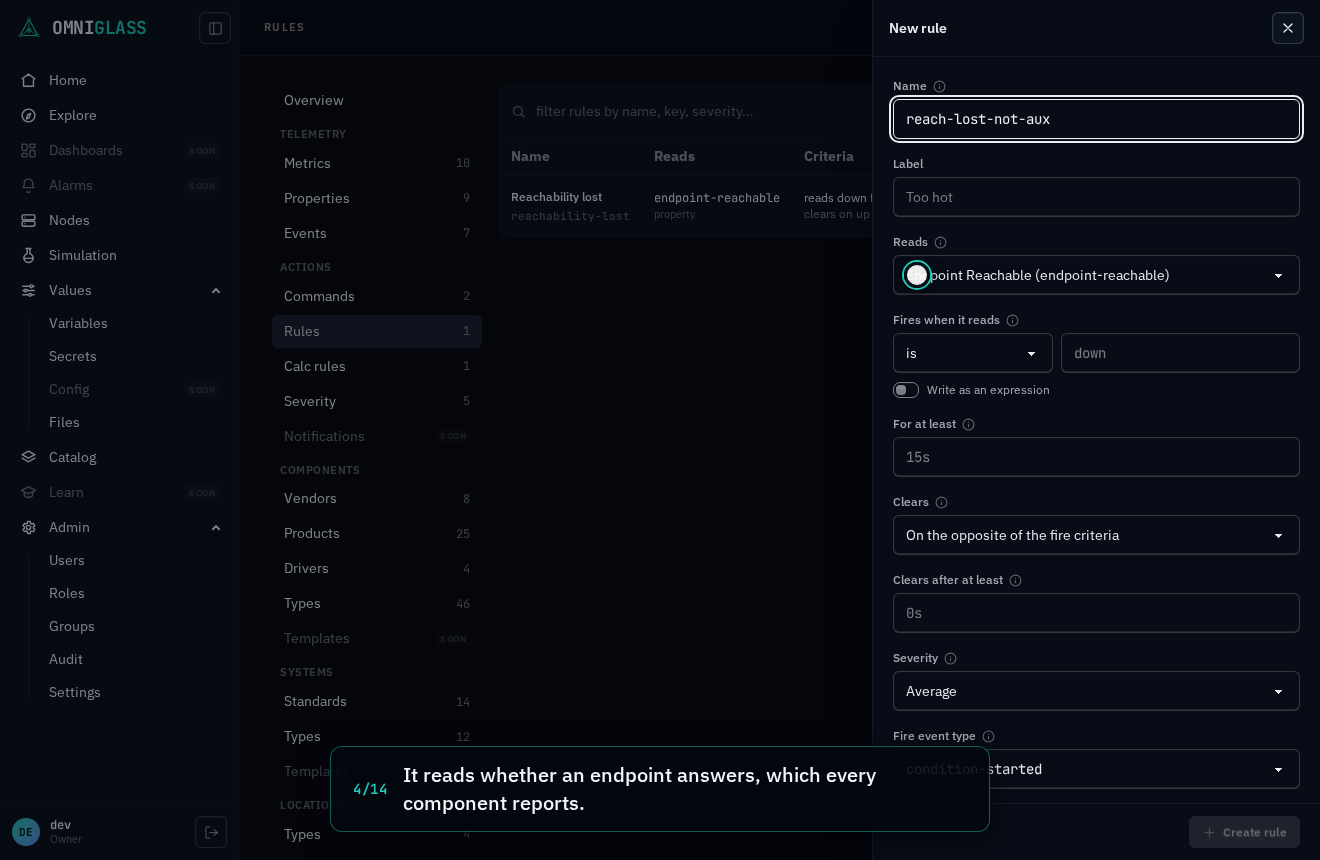
- Reads: one property or metric from the catalogs. Its lane decides how it compares: a property is text, compared only for equality; a metric is a number, compared any way. The comparison list beside the value offers exactly what the chosen key’s lane allows, in words.
- Fires when it reads: the comparison and the value that open an alarm. The value is used exactly
as typed: a property value with leading or trailing spaces is refused rather than trimmed (it would
never match), and a metric value must be a plain decimal (
40,-2.5). Beneath it the form shows the expression the comparison is stored as (value == "down",value > 40.0), so the builder teaches the language. - Write as an expression: switches the criteria to an expression, starting from the one the
comparison lowers to. Write any true-or-false expression over the sample:
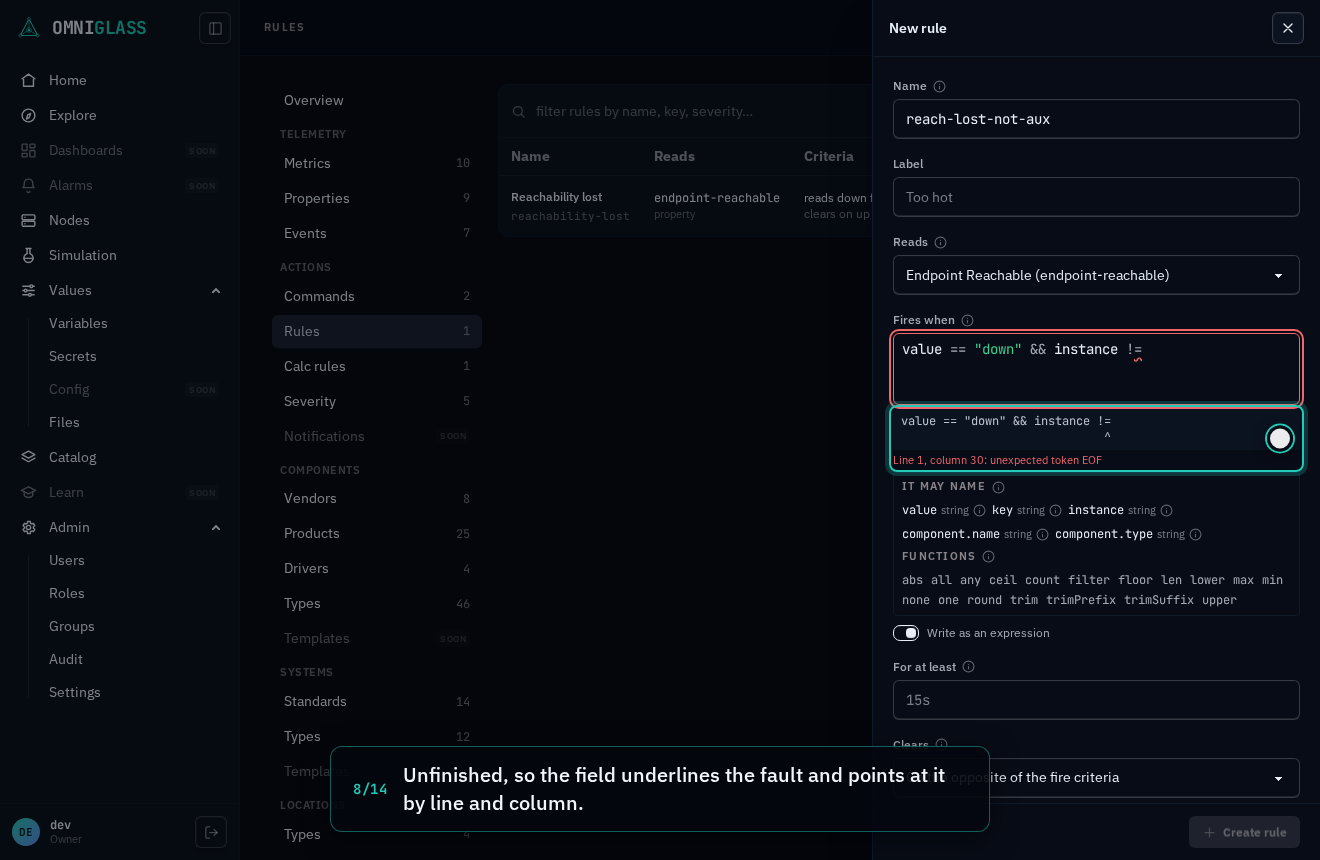
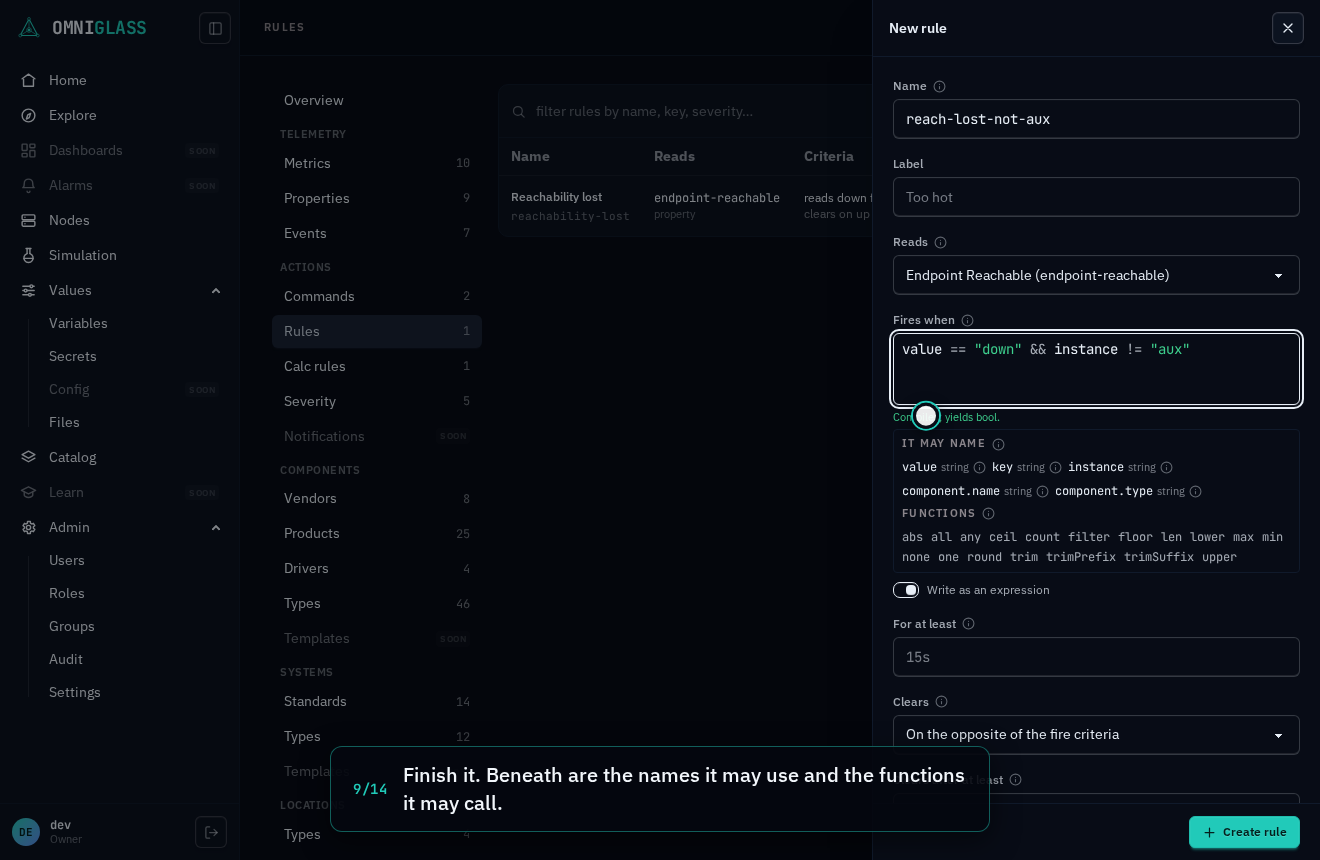
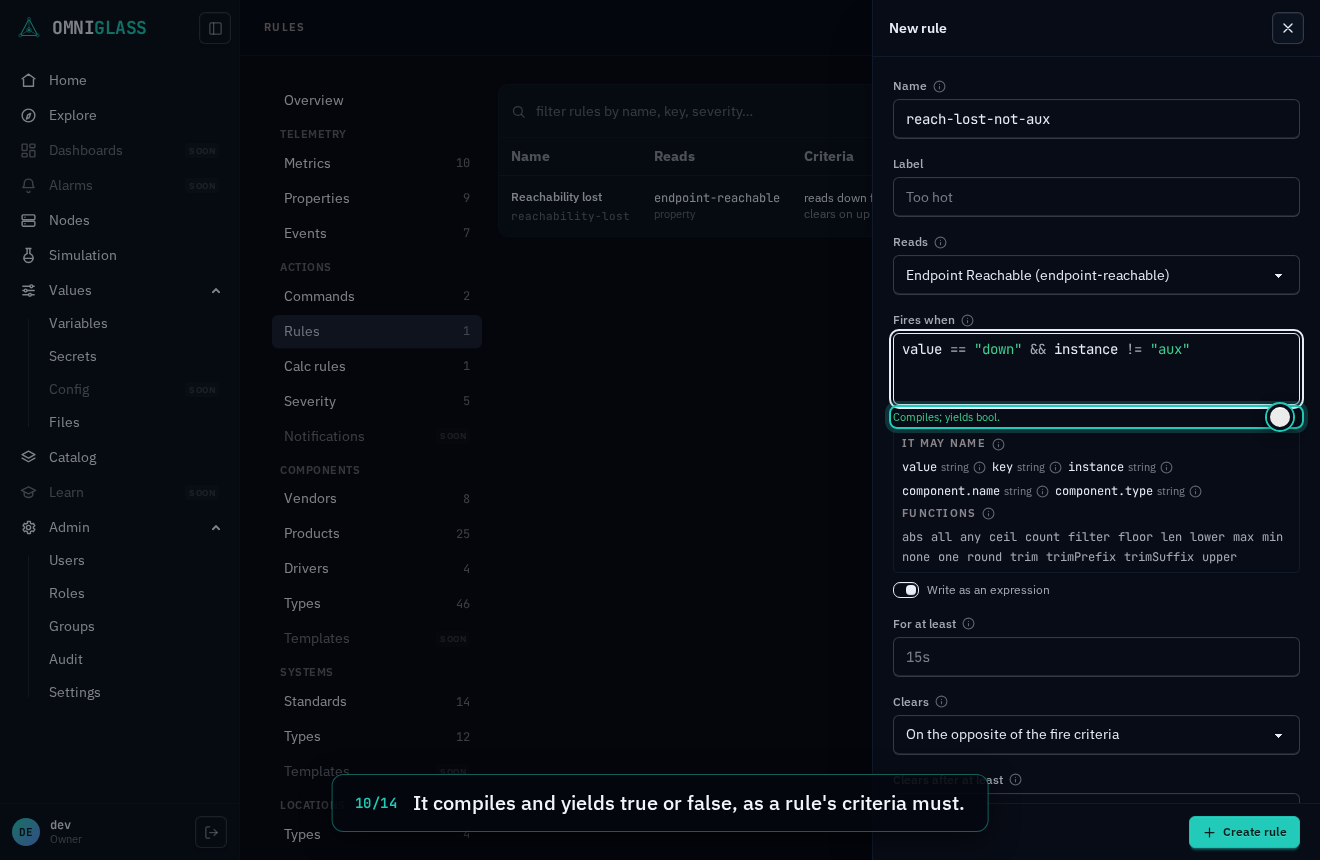
value,key,instance, and thecomponentwith itsnameandtype, with comparisons,&&,||,!and a few functions (value == "down" && instance != "aux"). The field is a code editor: it colors the expression as you write it, offers the names it may use and the functions it may call as you begin a word (Ctrl-Space asks at any point; Enter takes the highlighted one, Tab moves on to the next field), and shows what a name holds when you hover it. It is checked as you type: a mistake is underlined where it sits and pointed at under its line and column, and beneath the field are the names and functions again, each with what it means. A common mistake is said plainly, and an expression that saves but is probably wrong (value == 21.5, which a measured number seldom equals exactly) carries a warning in amber, which never stops the save; where a mistake has a one-click fix, a button beside it applies it (Ctrl-Z takes it back), and its code links to the diagnostics table. A saved rule’s warnings show on its blade as a note. A rule written as an expression opens in this mode. Switching back to the builder keeps the comparison when the expression still is one; an expression the builder cannot say is kept, and comes back when you switch to an expression again. A rule whose criteria no longer compile (its key’s data type changed, say) reads criteria do not compile in the list, and its blade says which criteria, where, and why; it judges nothing until they are rewritten. - For at least: the fire sustain, a duration (
30s,2m). The value has to keep meeting the criteria this long before the alarm opens; one sample that does not starts the wait over. The sustain is timed from the server’s receipt of the first sample that meets the criteria and judged on the server’s 5s sweep tick. Blank acts at once. - Clears: on the opposite of the fire criteria, or on criteria of their own (then Clears when it reads asks for them). A rule that fires above 40 and clears below 35 does not flap at 39.9. The clear criteria take a comparison or an expression the same way.
- Clears after at least: the clear sustain, set independently: a long clear sustain holds an incident through a noisy recovery without delaying the alarm.
- Severity: the level the alarm is raised at, worst first. A level marked outage takes its component out; any other degrades it. None (informational) makes a rule that records what happened as events and raises no alarm: it pages nobody and moves no verdict. A new rule starts at the worst level that does not take its component out; editing a rule never fills a level in for it.
- Fire event type and Clear event type: the events the rule writes,
from the event type registry. The fire type is required and is written once when the condition comes
into force (after the fire sustain); the clear type is optional (No clear event) and is written
once when it leaves force (after the clear sustain).
condition-startedandcondition-endedare the generic pair; a pair the registry already models (call-started/call-ended) says what happened instead. - Watches component types and Watches components: the components it selects. A type includes every type beneath it. Leave both empty to watch every component.
- Message, Description, Enabled.
Every field is checked as you type and Create rule stays refused until the rule is whole. When it is created, the rule judges the newest sample of every series it selects at once, so a condition that already holds starts its sustain then rather than waiting for the next change.
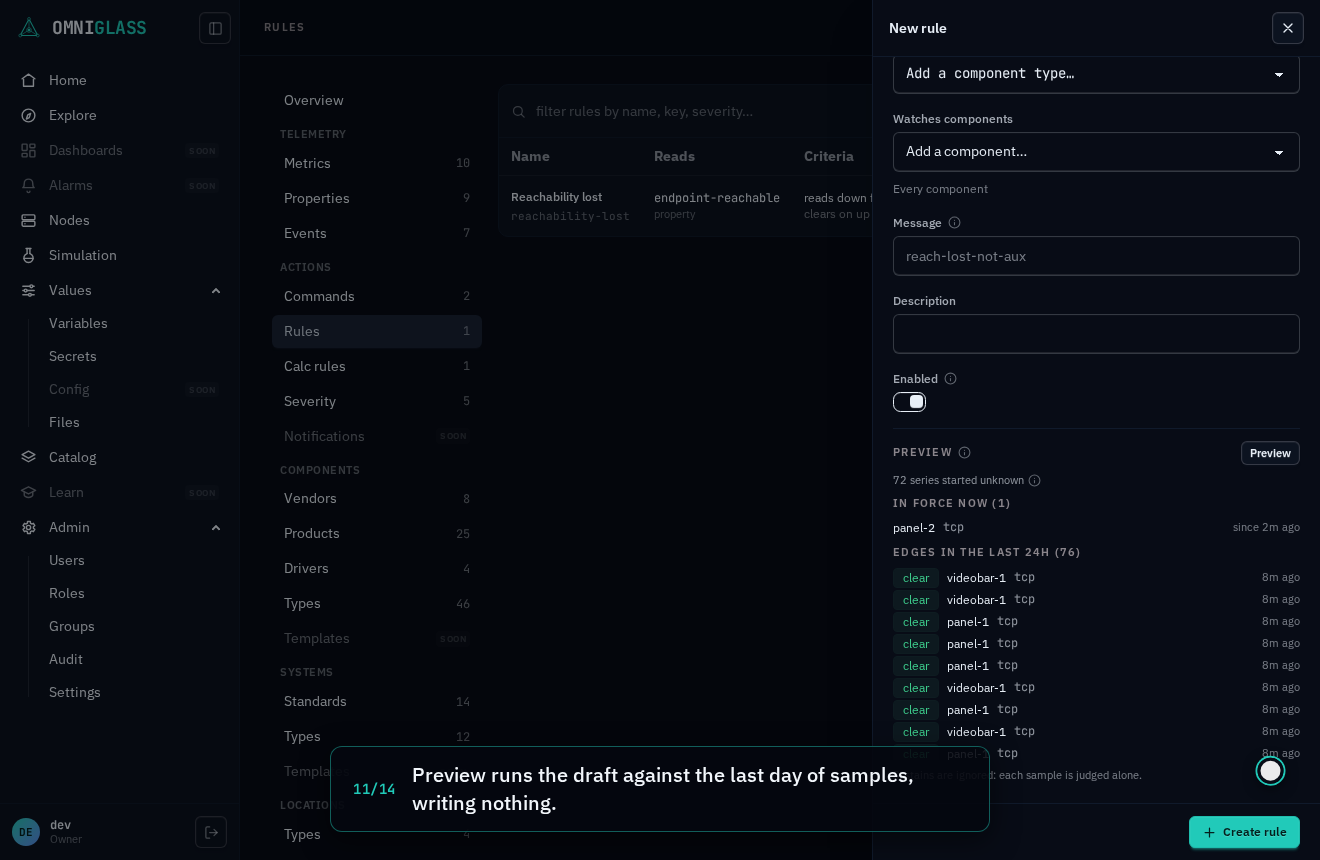
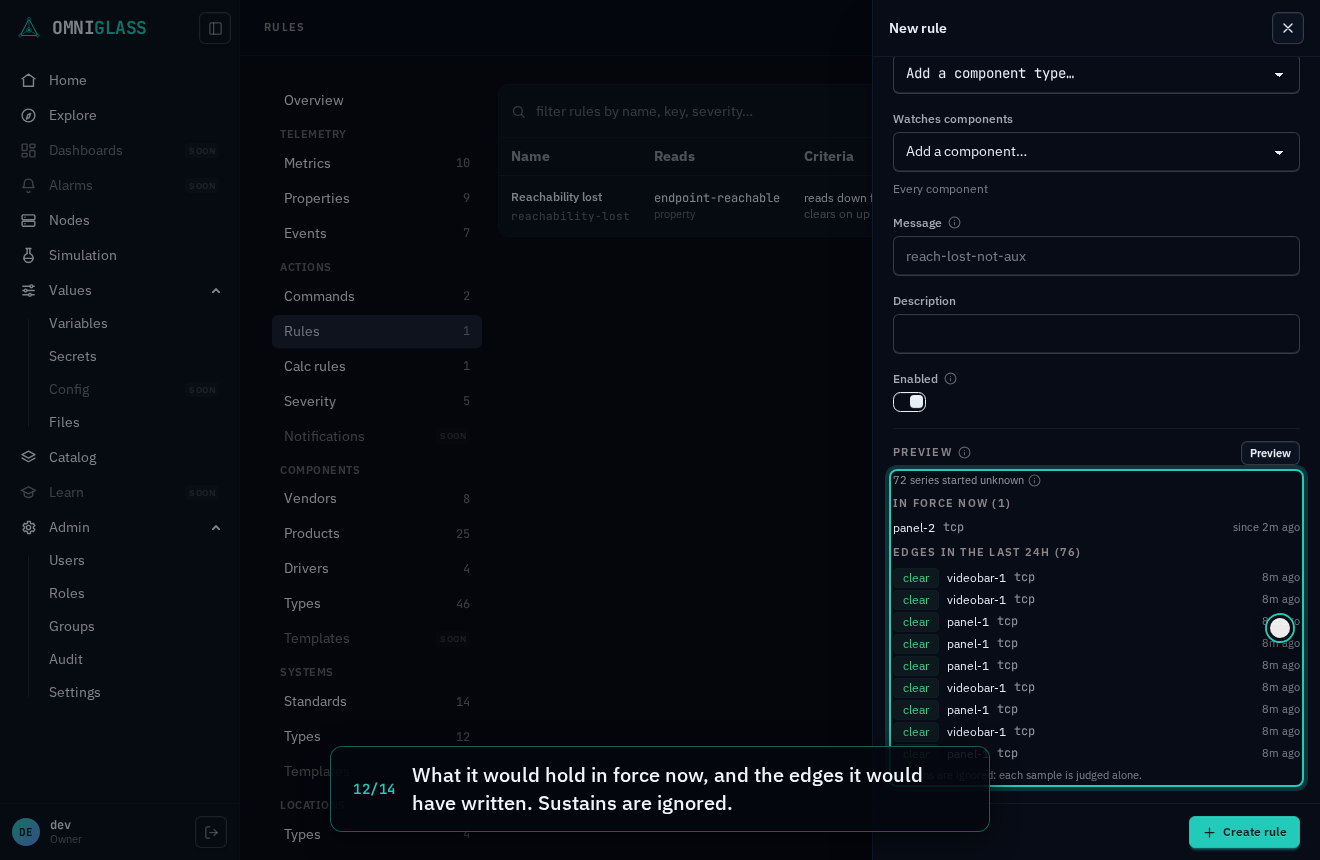
Preview, at the foot of the drawer, runs the draft against the last day of its key’s samples on the components you can read, without saving or writing anything: what it would hold in force now, each linked to its component, and the edges it would have written, fire and clear, newest last. Each sample is judged as the server judged it, but alone, so a sustain that would have held an edge back is not applied, which the panel says. A series with nothing deciding in the week before the window started unknown, and the panel counts those; on a fleet with more samples than the preview’s cap it judges whole series up to it and says how many of how many.
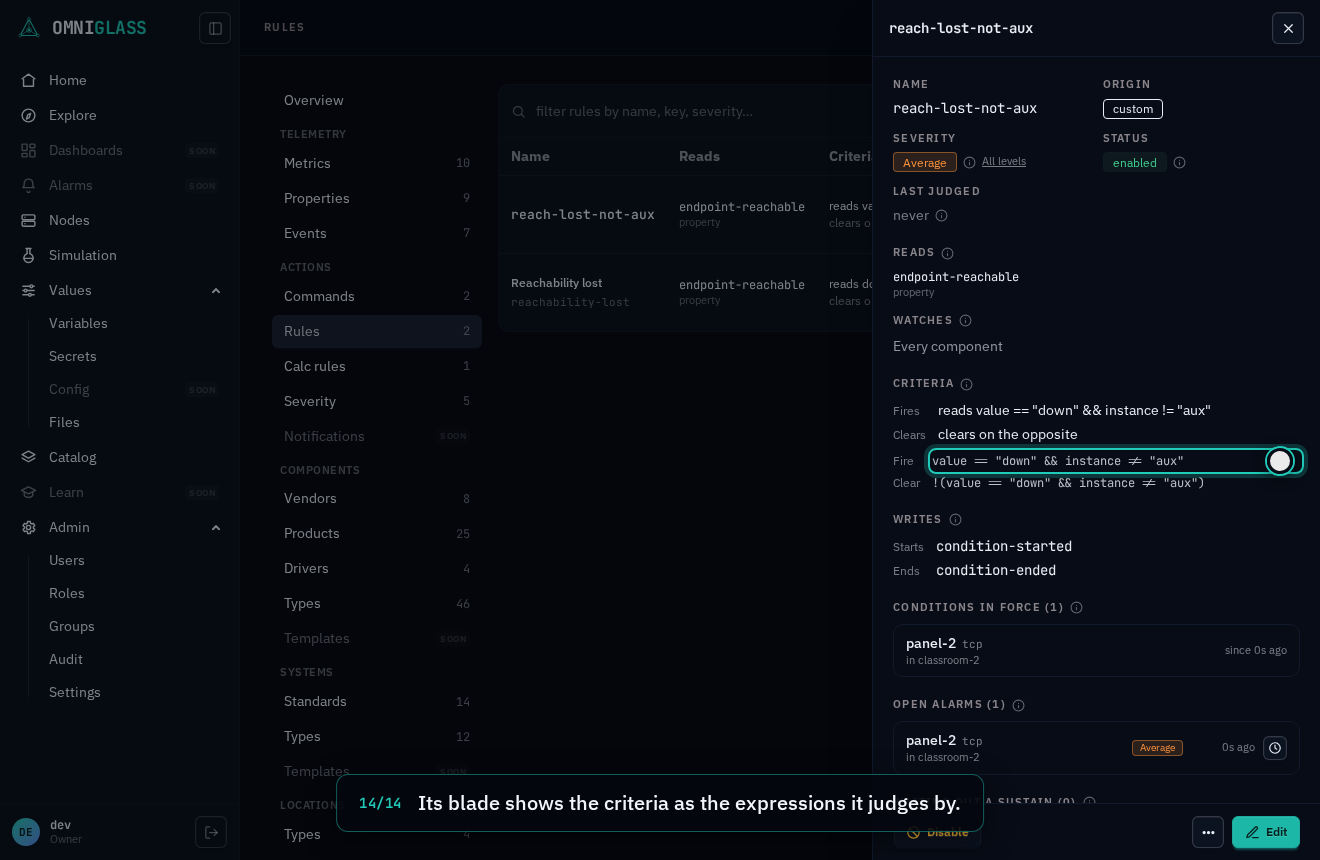
A rule’s blade shows its criteria in words and, beneath, as the expressions it judges by (an absent
clear is !(fire)).
The walkthrough below writes a rule’s criteria as an expression: the builder’s comparison first, then the expression itself, an unfinished line pointed at, the fix, a preview of the last day, and the save.
Every step, captioned (14 steps)
Rules turn readings into conditions and alarms. Start a new one.
New rule opens the drawer.
Name it, the address an operator types. A rename later moves only the name; its alarms hold the rule by uuid.
It reads whether an endpoint answers, which every component reports.
The builder compares one value. Beneath it is the expression it is stored as.
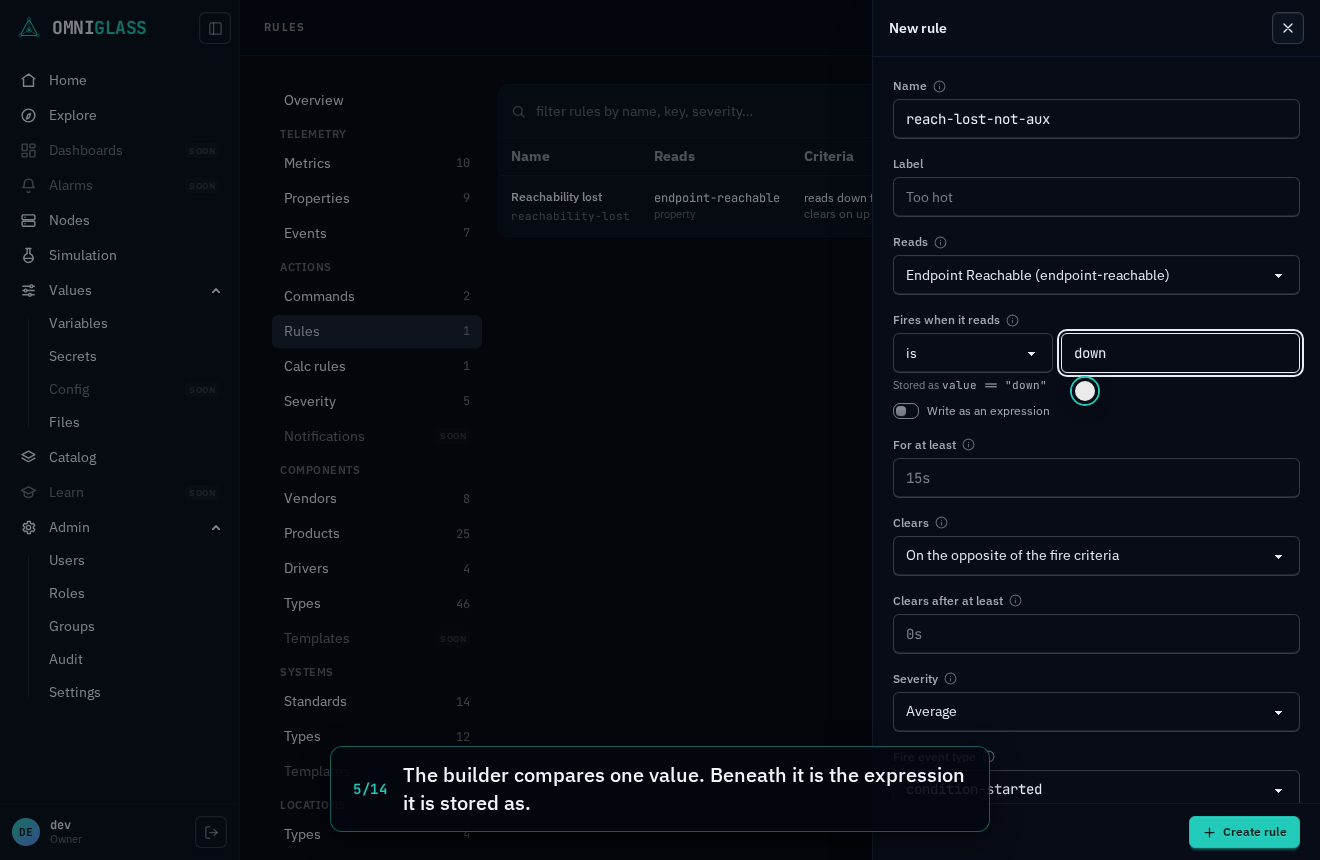
Write the expression itself instead, starting from the builder's own.
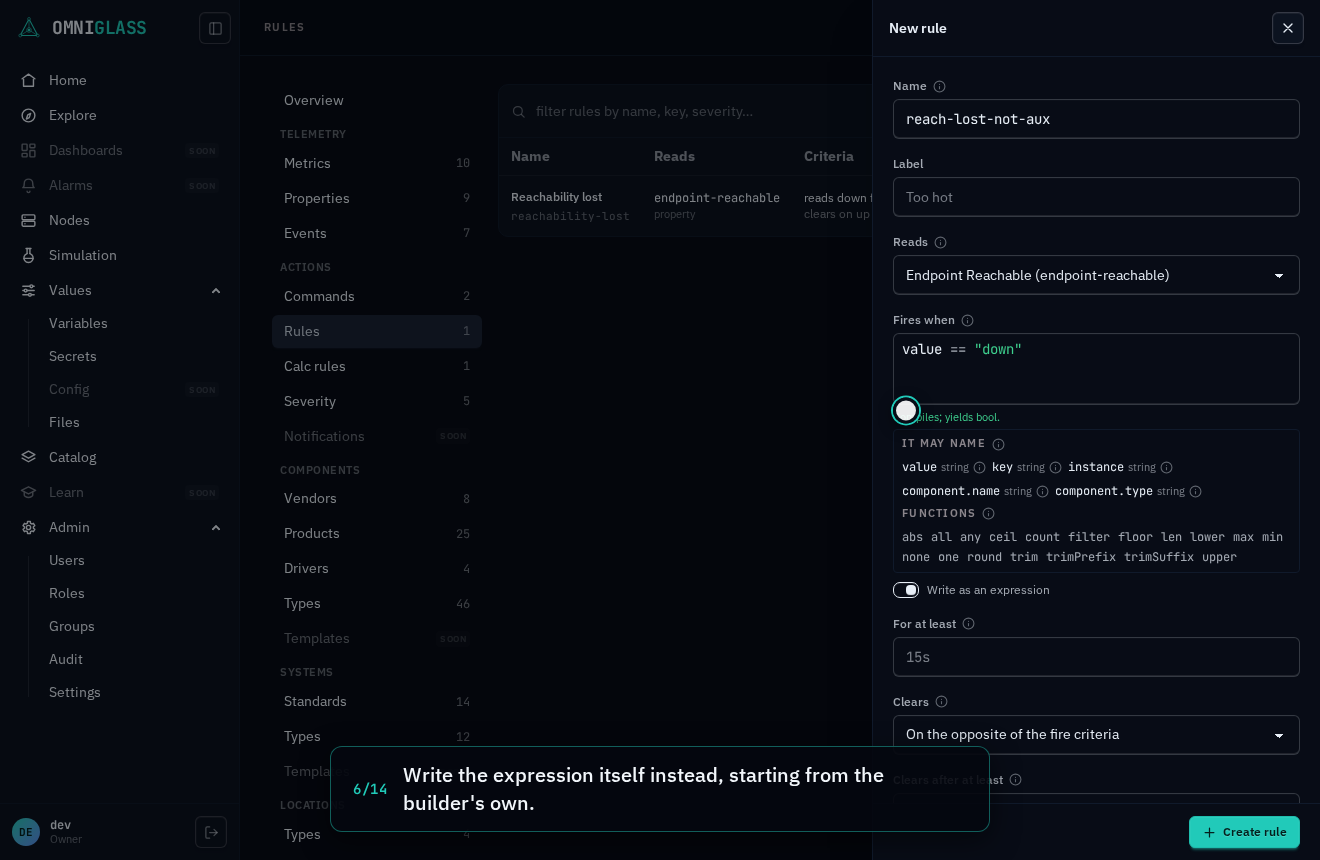
Leave the aux endpoint out. The field offers the names it may use, and checks the expression as it is typed.
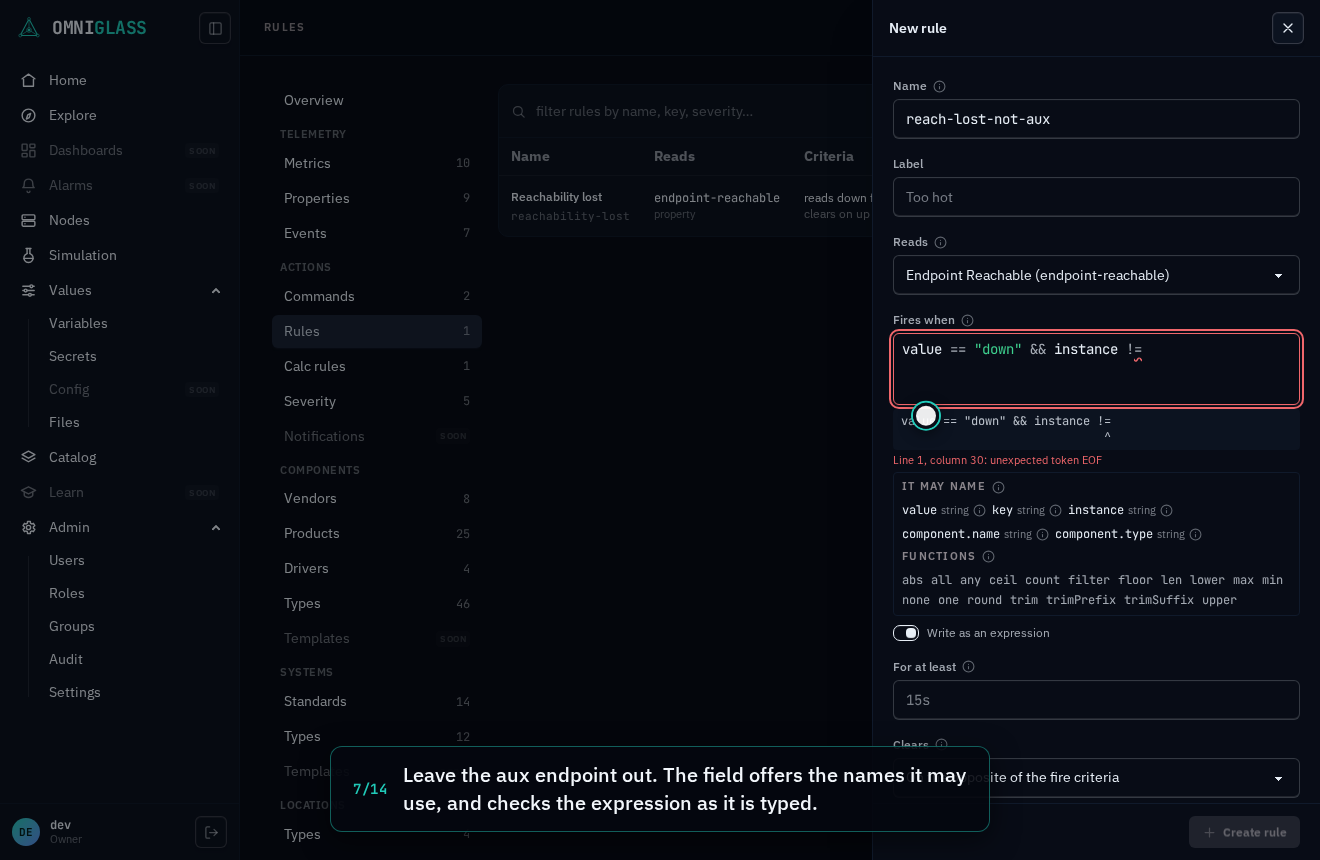
Unfinished, so the field underlines the fault and points at it by line and column.
Finish it. Beneath are the names it may use and the functions it may call.
It compiles and yields true or false, as a rule's criteria must.
Preview runs the draft against the last day of samples, writing nothing.
What it would hold in force now, and the edges it would have written. Sustains are ignored.
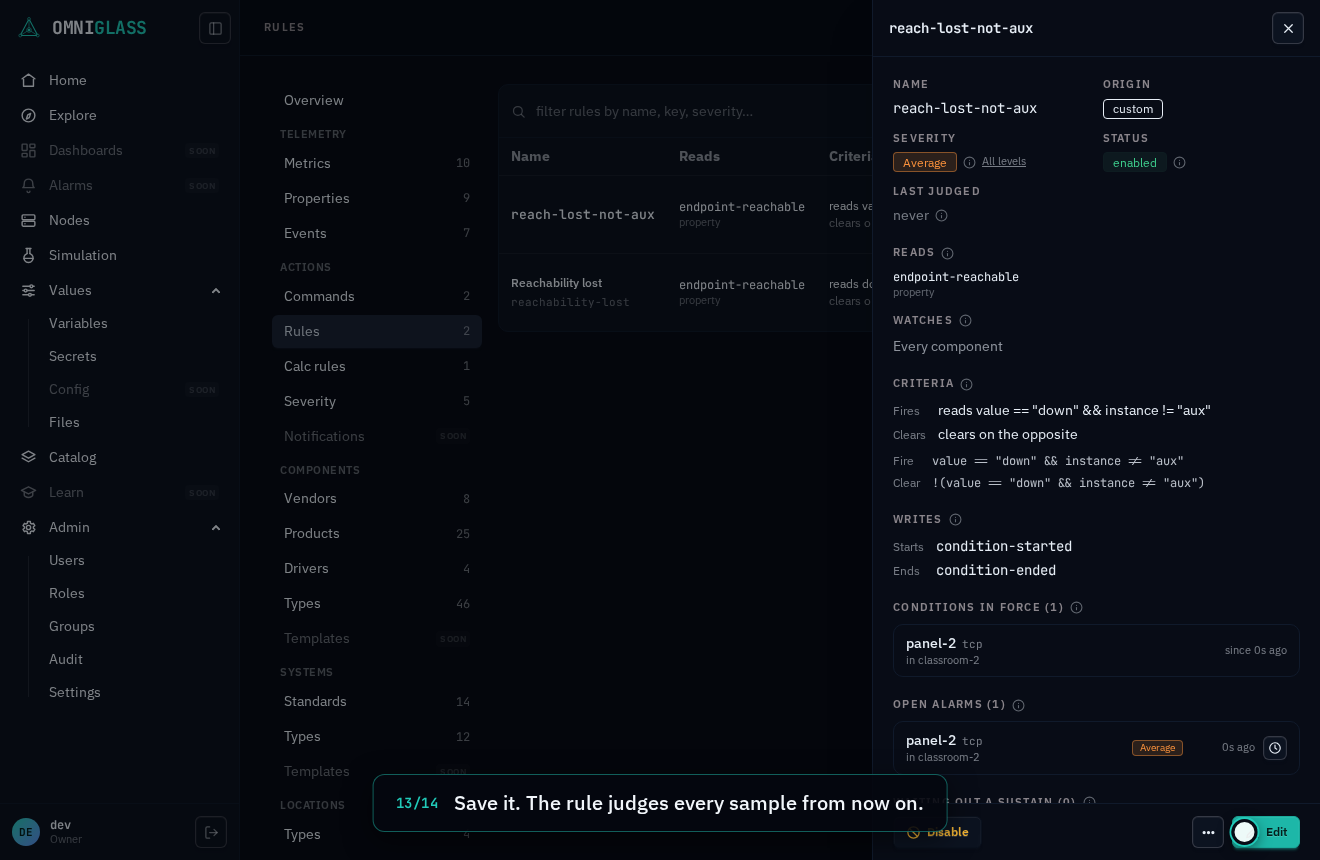
Save it. The rule judges every sample from now on.
Its blade shows the criteria as the expressions it judges by.
A worked example
Section titled “A worked example”A touch panel with two inputs reports the one it shows as its video-input property (hdmi1 or
hdmi2). To be told when one is switched to hdmi2, that is, off HDMI 1:
- New rule, name
input-moved, labelInput moved off HDMI 1. - Reads Video Input (
video-input); Fires when it reads ishdmi2; Clears on the opposite. - Severity a level that degrades rather than takes the panel out.
- Create rule.
Switch a simulated panel’s input (omniglass component simulation fire <panel> --surface nvp --command "SET INPUT hdmi2") and, on the next poll, the rule shows 1 open, the panel’s page
shows the alarm in the level’s color with the rule’s label as its message, and the panel itself reads
degraded (its system moves too if the panel fills one of its roles). Switch it back and it clears. On
a panel with more than two inputs, fire on is not hdmi1 instead, so any other input counts.
Conditions, and what a rule writes
Section titled “Conditions, and what a rule writes”A rule acts on a condition’s edges, never on every sample. Its condition comes into force on a component and endpoint once the fire criteria have held for the sustain, and leaves force once the clear criteria have; while it holds, the rule’s blade lists it under Conditions in force with when it started. At each edge the rule writes one event, which shows on the component’s and its system’s Activity, naming the rule (a link to its blade) and, when the rule raised or resolved an alarm in the same moment, carrying that alarm (its timeline opens in place). An event outlives its rule: once a rule is deleted, its events keep the name it had, shown as plain text marked (deleted) rather than a link to a blade that is gone. A condition that holds across many samples writes one event, not one per sample.
Two behaviors follow from acting on edges:
- A hand clear holds until the condition ends and returns. Clearing a rule’s alarm by hand leaves its condition and the events it wrote untouched, and further samples of the same condition (a metric over its threshold on every poll included) do not reopen it. Once the value recovers the condition ends, and the next time it comes back the rule opens a new alarm.
- Turning a severity on or off moves the alarms, not the condition. Giving an informational rule a severity opens alarms for the conditions it already holds; setting a rule to None resolves its open alarms and keeps the conditions in force. Neither writes a condition event, since the condition did not move; the alarm’s own audit rows (on its timeline) record the open or resolve and who edited the rule. One consequence: turning a severity off and back on reopens an alarm for every condition still in force, including one whose alarm was cleared by hand.
Edit, disable, delete
Section titled “Edit, disable, delete”On a custom rule’s blade, Edit (with rule:update) reopens the drawer with every field, the
name included. Saving sends only what you changed, so a rule that still watches a component or component type
deleted since it was written stays editable: the form marks such an entry deleted (it matches
nothing by it) and you can remove it or leave it. Changing what the rule judges (its key, criteria, selector or sustains) starts its pending
streaks over and judges the newest samples again; changing its label, description, message or
severity or event types leaves them running. Narrowing what it watches ends its conditions (each with
its clear event) and clears its alarms on the components it no longer selects. Disable stops
evaluation, ends the conditions the rule holds in force with their clear events, and clears its open
alarms (each stays in its component’s history as cleared); Enable judges the newest samples at once, so a condition that
still holds starts its sustain again. Delete (with rule:delete, behind a confirm) clears what the
rule holds open the same way and removes it; its past alarms stay in each component’s history, no
longer naming it.
Rename a rule
Section titled “Rename a rule”A changed Name in the Edit drawer renames the rule (rule:update on an all-scope grant, like
every rule write). Saving sends the other changes first and the rename last, so a name another rule
already holds is refused (and said so in the drawer) with the rest already saved. A rename moves only
the address: bookmarks and integrations that hold the old name stop finding it, which is the point of
renaming. Inside the platform nothing moves, since everything that refers to the rule holds its
uuid: its open alarms stay open and attached, its conditions stay in force, a pending sustain keeps
counting, and the next recovery clears the alarm as it would have. A rename is not an edit of what the
rule judges, so its version does not change. An event keeps the name the rule had when it was written,
so after a rename an episode’s start event reads the old name and its end event the new one; both link
to the same rule. An official rule keeps its name, since the platform matches it to the shipped seed by
name.
Severity levels
Section titled “Severity levels”Catalog, under Actions: Severity lists the levels worst first: each one’s rank (higher is worse), how it looks (the chip every alarm at that level wears), its effect (whether an active alarm at it puts its component in outage or only degrades it), and its origin. The shipped levels, rendered from the seed:
| Level | Color | Rank | An active alarm at it |
|---|---|---|---|
info (Info) | gray | 10 | degrades its component |
warning (Warning) | yellow | 20 | degrades its component |
average (Average) | orange | 30 | degrades its component |
high (High) | red | 40 | puts its component in outage |
disaster (Disaster) | darkred | 50 | puts its component in outage |
They are spaced apart, so a level of your own slots between two without renumbering; whether a level is an outage follows from its rank, against a fixed floor the table above marks.
Add, edit and delete a level
Section titled “Add, edit and delete a level”New severity level (with severity_level:create) opens a drawer:
- Name: a lowercase kebab name (
major). Alarms and rules name the level by it. - Label: optional; what the chip says (
P2). Blank shows the name. - Color: one of the console’s palette. The chip beneath the field is the one every alarm at the level will wear.
- Rank: a whole number above zero that no other level holds. As you type it, the form says where it sits (Between Average (30) and High (40).) and what an alarm at it does: at or above the outage floor it is an outage level (its alarms take their component out), below it a degrades level.
A name or rank another level holds is refused as you type, before anything is sent. On an operator
level’s blade, Edit (with severity_level:update) reopens the drawer with every field, the name
included: renaming a level carries every alarm at it and every rule that names it; re-ranking
one across the outage floor recomputes the health of every component with an open alarm at it, so a
level moved from 35 to 45 takes those components out at once. Delete (with severity_level:delete,
behind a confirm) is refused while an alarm or a rule still names the level, and the blade says so.
An official level is read-only: its blade greys Edit and Delete with that reason. Reading the levels
takes the permission on any grant, but writing one takes it on an all-scope grant, like a rule: a
level’s rank moves the health of every component with an alarm at it, wherever it sits. A caller whose
severity_level permissions stop at one place sees no New severity level, and Edit and Delete greyed.
The same writes from a terminal:
omniglass severity-level listomniglass severity-level create --name major --label Major --color orange --rank 35omniglass severity-level update major --label "P2"omniglass severity-level delete majorThe colors a level may take are listed under --color in the
CLI reference, generated from the API.
From the CLI and the API
Section titled “From the CLI and the API”Every console action is the same API call, with the same checks (see the CLI reference and the API reference for the full flags and bodies):
| Console | CLI | API |
|---|---|---|
| List | omniglass event-rule list | GET /event-rules |
| Open a rule | omniglass event-rule get <name> | GET /event-rules/{name} |
| Its live state | omniglass event-rule state list <name> | GET /event-rules/{name}/state |
| New rule | omniglass event-rule create | POST /event-rules |
| Edit, Disable, Enable | omniglass event-rule update <name> | PATCH /event-rules/{name} |
| Rename (Edit, the Name field) | omniglass event-rule rename <name> --name <new> | POST /event-rules/{name}:rename |
| Delete | omniglass event-rule delete <name> | DELETE /event-rules/{name} |
The worked example from a terminal, with criteria as JSON and sustains as durations. A criterion is
an expression, {"expr": "..."}, over the sample: value, key, instance, and component with
its name and type (alarms and actions names each). The
short form {op, value}, the comparisons the API reference lists for op, still works and is stored
as the expression it means; a rule always reads back as its expression.
omniglass event-rule create --name input-moved --label "Input moved off HDMI 1" \ --sample-key video-input --fire-criteria '{"op":"eq","value":"hdmi2"}' --severity averageomniglass event-rule create --name slow-to-answer --sample-key icmp-rtt-avg \ --fire-criteria '{"expr":"value > 200 && instance != \"aux\""}' --fire-sustain 2m \ --clear-criteria '{"op":"lt","value":100}' --clear-sustain 5m --severity warning \ --selector '{"component_types":["display"]}'omniglass event-rule update slow-to-answer --enabled=falseomniglass event-rule rename slow-to-answer --name rtt-highomniglass event-rule state list input-movedA key that is not a registered property or metric, a criterion that does not compile (an unknown
name, or a result that is not true or false; the 422 names the criterion, line and column), or a
severity level that does not exist is refused with a 422; a name already taken is a 409 (on create and
on rename); an official rule refuses every write, a rename included, with a 409. Every write is audited,
and every write answers the rule with its id, the handle a client keeps across renames.