

Work with an entity
BuiltOnce you have found an entity, you open it, read it, and change it the same way everywhere in the console.
Open an entity
Section titled “Open an entity”Click a row to open its blade, a panel that slides in from the right with the entity’s
details. From a blade you can drill into a child (it stacks another blade behind the first),
step back with the breadcrumb, or Expand to the entity’s own page: a fleet entity opens
its detail view, an identity entity its full detail. The page has its own URL, so it is
shareable and bookmarkable. A row opened on a list page (any catalog page, users, roles,
secrets, variables, outposts, files, alarms) is addressed too: its drawer puts
?open=<the row's name or id> in the URL, so you can link a colleague to it.
Rows are keyboard-operable: Tab to a row and press
Enter to open it.
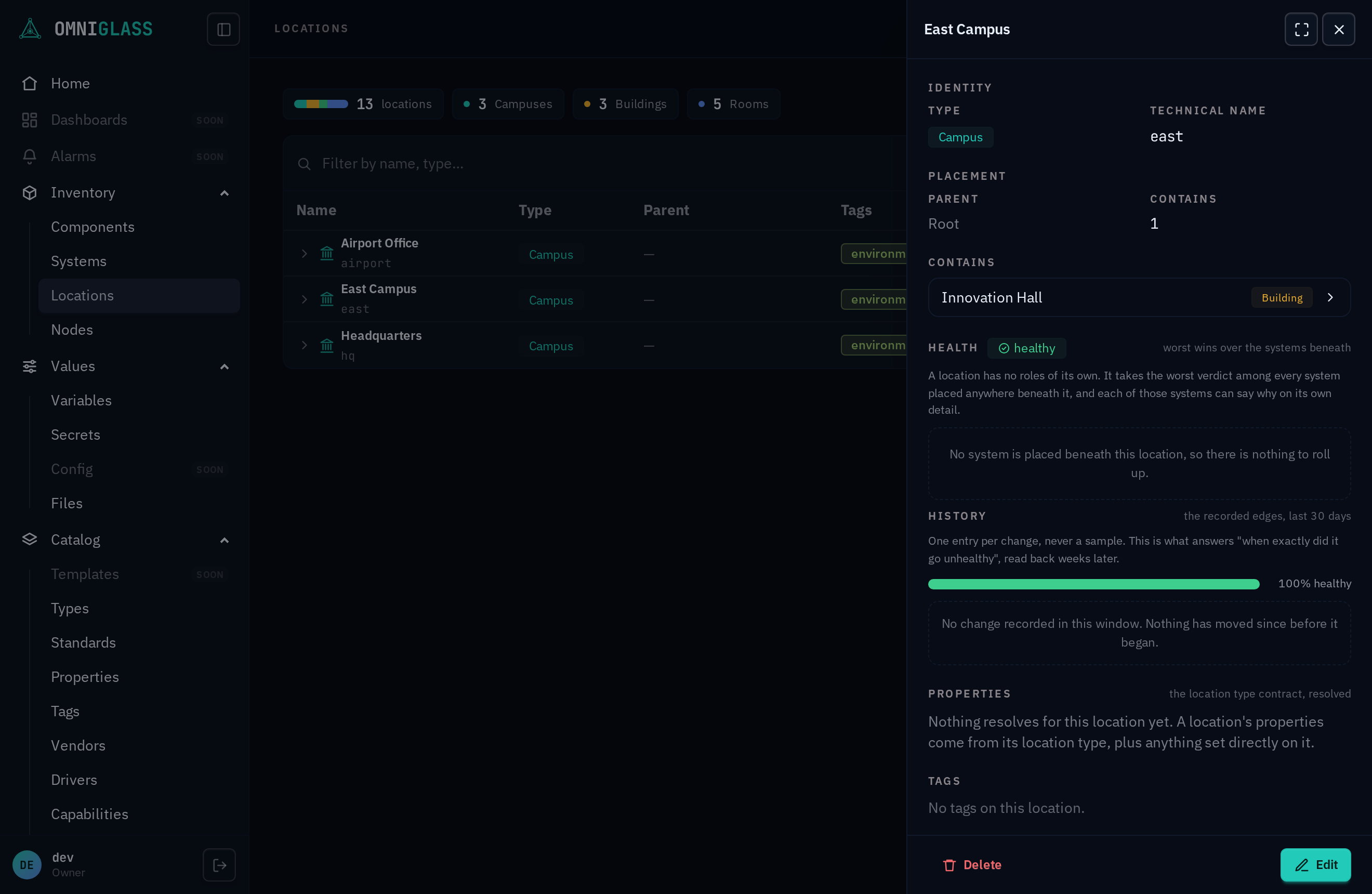
A fleet entity’s blade (a location, a system, a component) is its detail page in a side panel: the same card, the same tabs (Overview, Activity, Configure) and the same actions, reflowed to the narrower panel, so you never leave Explore to answer a question about an entity. Switching a tab inside the blade changes only the blade; the page behind it keeps its own address. A blade has no breadcrumb, so where the entity sits is said by a location card with the path above it. Opening something from inside a blade (a system a component serves, a component on a system’s Why) stacks another blade over it. Edit and a ⋯ menu holding Delete sit on the Configure tab’s rail, as on the page; Delete asks first and is gated by your permissions on that row. Expand still opens the page, for its breadcrumb and its shareable address.
The identity pages (Users, User groups, and Roles) use the same blade, and there drilling crosses entities: from a user you open a group’s blade over it, and from a group you open a member’s user blade, each stacking so you can trace where access comes from without leaving the page. Each page roots one entity and drills one direction (a user’s groups, a group’s members), so the stack stays shallow and the reverse relation on the far blade is a read-only reference.
Link a colleague to an open drawer
Section titled “Link a colleague to an open drawer”An open drawer has an address. Open a rule on Event rules, and the address bar reads
/event-rules?open=disk-nearly-full: the row’s name, the same one its API route and the CLI take
(a user, role or secret is addressed by its id). Copy the address and send it, and your colleague
lands on the list with the same drawer already open. A reload keeps your place, and Back closes
the drawer and leaves you on the list, since opening is a step in your history. Closing the drawer
clears the address. The address composes with the page’s other state, so a filter or a sort in the
address survives opening and closing. A blade you drill into from the drawer is a quick look and is
not in the address.
An address that names nothing (a rule that was deleted, or one you may not see) shows the list with a notice, not a blank drawer. The notice reads the same either way, so it does not reveal which.
Edit through the footer action bar
Section titled “Edit through the footer action bar”A blade opens read-only, and the header is chrome only (back, full-page, close). A fleet
blade (a location, a system, a component) is its detail view, so it edits as the page does: on its
Configure tab, whose tab rail carries Edit and a ⋯ menu holding Delete behind a confirm (see
Configure and what is in the way). The rest of this section is the identity and catalog blades, whose
actions live in the blade’s own footer action bar: Edit turns the whole blade live in place,
its profile, members and grants.
On an identity blade, Edit (right) opens edit mode: the profile becomes inputs, the members and grants go live, and the right
cluster swaps to Cancel and Save. Changes stage locally so you can check your work first; Save
commits them together, Cancel discards them. The destructive action sits on the left and is always
available, with no need to enter edit mode: a red Delete for a group (a user instead has the escalating
lifecycle of Disable, then Archive, then Purge, so its left slot is
Disable / Enable and the stronger steps sit in the kebab), each behind a confirm. Secondary actions like Impersonate fold into a
⋯ menu. A blade you may not write keeps its buttons in place, greyed, with the
reason on hover (or on keyboard focus), except an official catalog row, whose footer shows one “Official, read-only”
note (“Official: ships with Omniglass and updates with it.” on hover) in place of both buttons. A missing permission greys just that
button and names the permission that would unlock it (Requires <resource>:update on Edit,
Requires <resource>:delete on Delete), so a verb you do hold stays live beside the one you lack.
A blade with no actions at all (a role) shows no bar.
The same bar carries create. A form that opens in a slide-over (New user, New tag, Upload file) or as its own blade (New endpoint) puts its Create button in the bar at the foot of the panel, never floating after the last field. On the create faces and the event rule form it stays enabled and, pressed with a gap, names what is missing; the older slide-over forms still grey it out until the form is complete. Cancel sits beside it on the forms that offer one; where it does not, the header x closes the panel.
Delete, and what is in the way
Section titled “Delete, and what is in the way”Every delete in the console asks first in the same dialog: its title names the thing (Delete component “display-1”?), its body says what goes with it, and the red button carries the verb (Delete component, Remove simulated component, Withdraw slot). Cancel holds the focus when it opens, so Enter never deletes by accident; Escape and the overlay close it too.
A location, a system or a component cannot be deleted while something still depends on it: a child, an endpoint it owns, a system or component placed in it, a slot it staffs. The server refuses, and the dialog stays open and lists In the way, each row naming its kind and linking to its own page (an endpoint has no page, so it is named, not linked). Each row has its own Delete, which asks once more on the row and then deletes that row by its own kind’s delete, under its own permission; a row that is itself refused says why on the row. Once nothing is left, press the dialog’s Delete again: the retry happens in place, and nothing needs the API. Where a blocker should move rather than go (a system that belongs in another room), follow its link and move it there.
The list names only what you may read. A blocker outside your scope is counted (1 more you cannot see from here), never named, so a refusal tells you no more about the fleet than your grants already do; someone who can see it has to clear it. Nothing here deletes in cascade: each row goes by its own delete. (Decommissioning a whole location, with what it holds, is a separate verb.)
Deep-link the edit
Section titled “Deep-link the edit”The mode is part of the address: append ?edit=1 to a fleet entity’s URL and it lands on
the detail view’s Configure tab, already editing (#800), so a “fix the label on this
location” handoff is one link, not a link plus instructions. The same permission gates apply: without <resource>:update the
link lands reading, quietly. Leaving edit (Cancel or Save) strips the param, so refreshing
mid-edit keeps your place, while Back and a re-shared URL never reopen an edit you already
left. A location holding one system is configured on its system’s view, so ?edit=1 on that
location’s address lands on the system’s Configure with the location’s own form editing
(?edit=location). The console uses these links for its handoffs, for example a user’s
?open=<id>&edit=1 deep link on the identity pages (the older ?u=<id> still opens). Creating a
location, system or component does not: it lands on the new row’s Overview with a “created” notice
(#2465), since what you want next is to see it. The back link above a create form names the location
you pressed + on (← West Building) and goes there; opened from nowhere in particular it is
← Explore.
Create, edit, delete
Section titled “Create, edit, delete”The Create button is never greyed. Pressing it on a form with a gap does not submit: a line beside the buttons reads “To create the component, fill in Product and Name”, each name a link that focuses its field, the fields are marked, and the first one takes the focus. The create faces end at that action row; anything that waits for the entity to exist (its tags) appears on the detail after you create it.
-
A component is added through its own flow, from its product to an endpoint that has answered (add a component); the plain form below is its advanced link.
-
New opens a draft at the entity’s own
/createaddress, From scratch by default; From a template instead starts from one of the examples Omniglass ships (starting from a template). From scratch, it asks what and where before it asks what to call it, because those are what the naming and labelling rules read. Classification comes first: a component picks its product, a system its type and the standard it conforms to, a location its type. Placement comes second (a system, a location, a parent, depending on the entity). Identity comes last, and on these three pages both of its fields are optional.On a component, the System slot is the one part of the form your permissions can take away. Putting a component in a system writes that system’s membership, the same act as adding a member to it, so it needs
system:update: an Operator holds no system permission and gets the slot with the reason in it instead of a picker, while a Deploy tech or an administrator gets the picker. Nothing else about the create changes, and the component is not stuck outside: create it, and whoever holds that permission adds it to a system afterwards. Adding a member writes onto the component too (its default system, its label, what it inherits), so that act takescomponent:updateover the component as well assystem:updateover the system; a Deploy grant over both covers it.The same slot is on the component’s edit face as Memberships, so a system you chose at create is not a choice you are stuck with. Each system the component is in is a chip (the primary is marked) with a remove control, and three controls change them, one act each. Also serves… adds a system and keeps the others (a shared device is in several), without touching the primary. Primary system chooses which of the component’s systems is its default, and lists only systems it is in. Moving the component from one system to another is not here: it is Move to… under Placement, below. Save applies the memberships with the rest of the edit; if the server refuses one (a system outside your
system:updatescope, or a slot the component still fills there), the reason shows at the top of the Configure body, under the tab rail, and the form stays in edit. Withoutsystem:updatethe field reads but does not edit. The system’s member list updates without a reload.Identity is two fields you may fill and one you never see: the name is the identifier the API, the CLI, and the URL carry (
display-1, lowercase letters, digits, and hyphens, unique within its placement, changeable later, see Edit), the label is the friendly string a human reads (“HQ Boardroom DSP”), and theidis a uuid the platform mints and keeps internally. Typing a label never fills the name in for you here; those two fields are independent, because a blank name is a request rather than an omission.Both identity fields arrive locked, already filled in with what the platform will use. That is the default in effect rather than an offer: you are not asked to name anything, you are shown what the row is about to be called and given a lock to open if you disagree. Each field carries its own lock, inside the field on the right, and opening one leaves the other exactly where it was. A locked field sends nothing at all, which is how the platform keeps the pen.
The lock is a small button with no words on it: an opening padlock on a locked field (its tooltip reads Override), and the restore arrow on one you have taken over (Restore to default, the same button and the same words a setting carries, because handing a field back to the platform is the same act). Clicking the locked field itself takes it over too, and taking a field over empties it: you are writing the value, not editing the platform’s. Restoring discards what you typed and hands the field back.
The locked name is the name the row will get, number and all:
display-3, notdisplay-n. The stem comes from the type and the number is the lowest one free in that placement right now. Some types carry no number on the first of their kind in a location, so the first board-meeting in a location isboard-meetingand the second isboard-meeting-2; the form shows whichever applies rather than a shape you have to read. Under it the form names the placement the name has to be unique in, as a path: the name itself never carries that path, since a name is unique within its placement rather than across the fleet.The number is true rather than reserved, and Create is where that is settled. Nothing is created and no number is held while you fill the form in, so somebody else creating in the same place can take it first. When that happens your Create is refused, with a message naming the number that moved, and the form re-reads and shows the name that is free now: press Create again to take it. You are never quietly given a different name from the one you were shown, which is the whole point of a field that arrives filled in.
The locked label is the real label, rendered by the same rule engine that will stamp it, against the classification and placement you have just chosen, and against that same number. The field’s (i) carries the rule that produced it, so the value is traceable rather than arriving from nowhere; the hint under the field says the label is rendered, not the template itself. Nothing is created to work either of them out: it is a render, not a draft row (ADR-0104).
Where no label rule applies to what you picked, the field says so and shows the name instead, because that is what an operator will actually read on the row. You reach that state by clearing the rule at every tier; out of the box each of the three kinds ships one.
A location’s shipped rule reads its own name as words: create a location named
north-boardroomand the locked field shows North Boardroom, because the rule splits the name on its hyphens, capitalises each word, and applies your acronym list (sohq-westreads HQ West onceHQis on it). It only re-cases what you typed, so where the location’s real name is not in its machine name (ahuddlethat everyone calls the Huddle Room), open the lock and type it.A system’s shipped rule reads its location, because a system is what makes that location work: a system you create in Boardroom 204B shows the label Boardroom 204B. Once a location holds several systems, each adds its type: Media Lab Meeting beside Media Lab Signage, and the first one restamps when the second arrives (and back when it leaves). Two of the same type add the number their names carry:
board-meeting-2shows Boardroom 204B Board Meeting 2. A system with no type names itself instead (“Media Lab Lobby Wall”). The two fields are one answer, so a label with a number in it means a name with the same number in it, and neither is a guess: both are read from the placement you have just picked. A system with no location reads its type.A name is required only where nothing will generate one, and there the field arrives unlocked with no lock to close: a system with no type (or a type whose chain sets no stem), a location whose type carries no name rule, a product whose type chain carries no stem. The form names the missing fact rather than just refusing. Elsewhere (the catalog and admin pages, whose names have no generator and are unique fleet-wide) the name still fills itself in from the label until you edit it.
A location’s type is required, since for a location the type is the only shape-definer; on a component and a system the classifier picks the stem too, so an unclassified system is legitimate but has to be named by hand. Create commits the row and drops you straight into its detail in edit mode, so you can tag it and finish configuring in place instead of hunting for it back in the list. Bindings like tags need the entity to exist, so they unlock the moment it is created. On a location, the type you pick may restrict which parent types it can sit under (or require no parent at all); a placement outside that set is refused with a message naming both types, right on the create form.
-
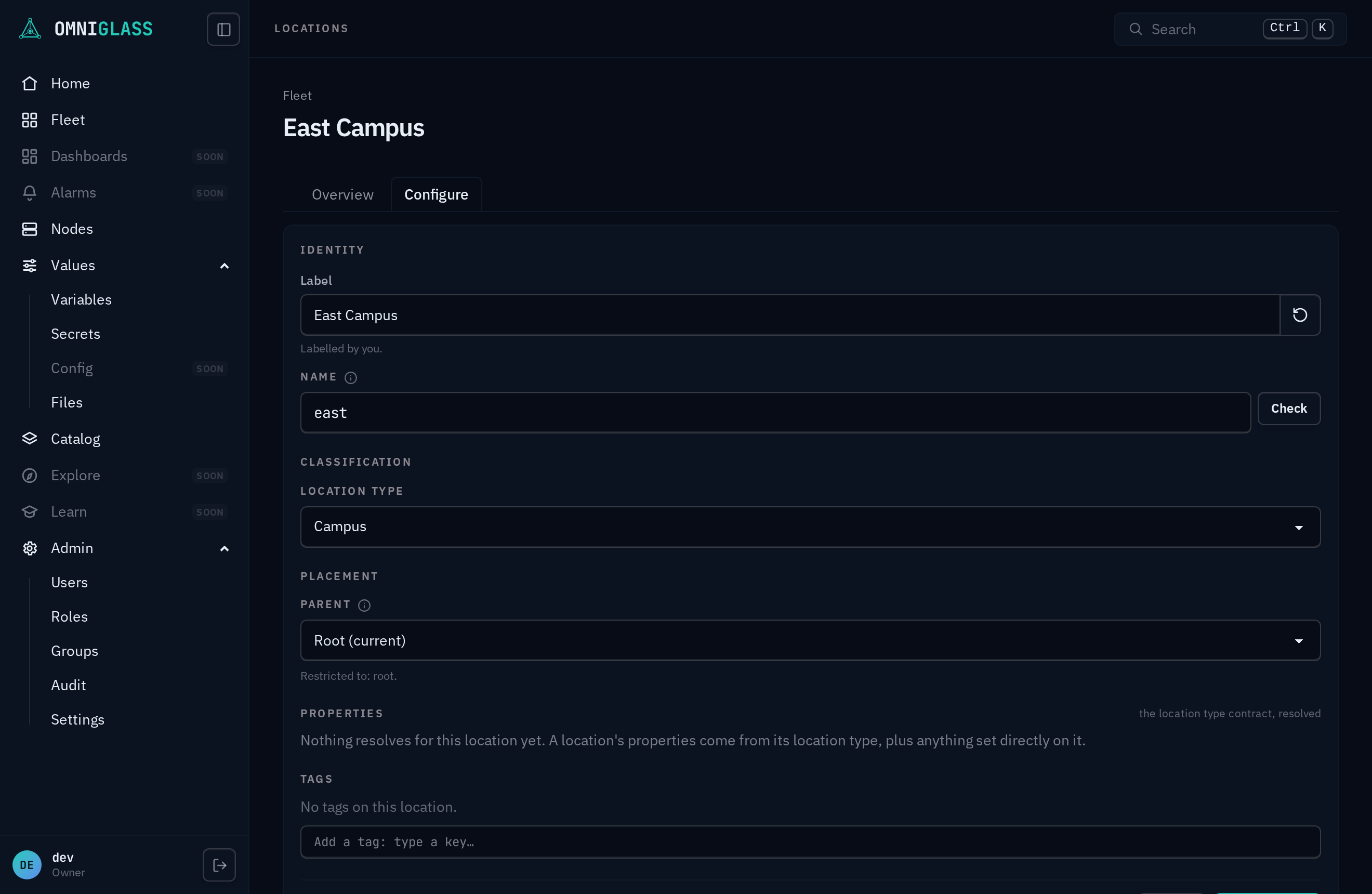
Edit (the pencil on a row, or the button in the detail) flips that same detail into edit mode: the fields become inputs and the tag editor goes live. The Name is editable here on a component, a system, and a location, with an inline Check button that reports whether a proposed name is valid and still free before you save. Save commits the changes, Cancel discards them. In view the detail is read-only, so tags and other bindings are shown but not editable until you enter edit.
-
A label the platform wrote opens locked, and taking it is a deliberate act. On a component, a system, and a location the Label can be one a label rule rendered. Where it is, edit mode shows it in a locked field saying so, exactly as the create form does, and it stays the platform’s across every other edit you make: changing a type, a standard, or a tag no longer quietly claims the label. The lock in the field hands you the pen (the field opens for editing, seeded with the label that was there), and the restore arrow beside an edited one hands it back, so the platform relabels the row from its rule when you save. Clearing the field does the same thing.
-
Renaming is a separate act from an update, and separately granted. It is its own call,
<resource>:renamerather than<resource>:update, and Save patches the other fields first and sends the rename last: an operator holding update but not rename keeps the rest of the edit and leaves the name where it was (ADR-0076). A group’s name is read-only in the console and moves from the API or the CLI. Renaming changes the entity’s URL, so bookmarks, runbooks, and integration config holding the old name stop resolving. Nothing inside Omniglass breaks: every reference holds the entity’sid, so its tags, grants, alarms, and recorded history follow the rename, and the audit trail stays attributable across it. Renaming a Generated name hands you the pen for good: the platform stops tracking it, even through a later move or a product swap. A reset icon beside the name field (gated the same as rename) hands it back, regenerating from the entity’s current type and placement and marking it Generated again. -
Moving is a separate act from an update too, and separately granted, the same split renaming draws. Placement (Parent on a component, a system, or a location; Location on a component or a system) is not a field on the regular edit save: it is its own call,
<resource>:moverather than<resource>:update. An operator holding update but not move can still edit the label, type, or product, but the placement fields stay read-only. Where the console offers a live picker, Save patches the other fields first and sends the move second, so a refused move (a cycle, a placement-type mismatch, or a taken name at the destination, naming both parties) leaves the rest of the edit in place rather than undoing it. -
A location’s edit mode makes its Parent editable, the console’s one live placement picker (with the move permission): the Placement section swaps its read-only fact for a picker narrowed to the location type’s allowed parents (or, when unconstrained, every location), excluding the location’s own subtree. Moving back to root is not offered here, and the platform has no clear-to-root capability for a location at all, not even from the API or CLI.
-
A component’s and a system’s edit face carries Move to… under Placement, gated by
component:moveorsystem:move. It is its own act, not a field Save carries: pick what to move to, press Move, and it happens at once, so the rest of your edit is untouched. A destination is a type-to-filter list whose second line says where each choice is (a location by the locations above it, a system or component by the place it sits in), so two rooms named alike tell apart. What you can move to:- Another location: relocates it to another location. The current location is shown but cannot be chosen.
- Another system (a component, with
system:update): joins the system, optionally in a slot you choose (a full slot is shown and cannot be chosen), makes it the component’s primary, and leaves the system it was in, freeing the slot it held there first. Other systems it serves are kept. To keep the old system as well, use Also serves… instead. - No location (offered once it is placed) unplaces it.
- Under a component or Under a system: re-parents it in its own tree. No parent (top
level) lifts it to a root and needs the all-scoped grant the API requires. A cycle (under itself
or one of its own children) is refused.
The server’s refusal (a cycle, a destination outside your scope, a full slot, a taken name at the
destination) shows under the picker and leaves the panel open to try another destination. A move
can rename an entity the platform named, since its name is unique within its placement; the page
stays on the entity, which is addressed by its uuid, and the breadcrumb and Explore show the new
location. The same moves are available from the API or CLI (
omniglass component move,omniglass system move), which follow the same three-state convention: an empty location unplaces, clearing parent to lift an entity to a root needs an all-scoped grant, the same authorization creating a root entity already requires, since a scope-limited operator clearing parent would otherwise walk an entity out of every subtree their own grant was ever limited to. From the CLI, an entity’s<name>argument takes a uuid, a bare name, or its full dotted address (boi.17c.415a.$comp.display-1), the location path down to a$comp/$sysaccessor and the entity’s own location from there. Quote it: an unquoted$compdisappears before the shell ever sends the request, soomniglass component get 'boi.17c.415a.$comp.display-1'(single quotes), never bare.
-
Delete removes it, with a confirm. These actions appear only if your grants allow them.
Labels the platform writes
Section titled “Labels the platform writes”- Who wrote a label is shown where you can change it. A label the platform rendered from a
label rule opens locked in the edit form, with the rule
stated under the field; the lock beside it hands you the pen, and the restore arrow hands it
back. To see every row a rule edit would rewrite, run
omniglass <entity> previewLabels: it lists exactly the rows the platform still labels, and nothing you typed yourself. - Upgrading into a new rule does not relabel anything you already have. Locations shipped
with no label rule before, so a fleet created then keeps reading its raw names (
north-wing) after the upgrade. Applying the new rule is your act, and there is no console button for it yet: runomniglass location previewLabelsto see which rows would move, thenomniglass location recomputeLabelsto apply it, and the same rows read North Wing. Nothing you typed yourself is touched by either. - The same applies to systems, and that upgrade is worth running. A system’s shipped label
reads its location, so a location and its one system read as one name instead of the location’s name above the
system’s type (“Meeting” under Briefing Room). A fleet created before the upgrade keeps its
old labels until you run
omniglass system previewLabels, thenomniglass system recomputeLabels. Only the second of a kind in a location adds its type and number: a location with one board-meeting reads as the location, exactly as its name isboard-meetingrather thanboard-meeting-1.
Properties on the detail
Section titled “Properties on the detail”A component, a system, and a location each carry a Properties panel on their detail: one row per property their classifier declares, resolved to the value set here or the classifier’s default. Overrides are staged with the rest of the edit and committed by the same Save. It is one surface over one resolver, so the panel reads the same on all three; the full walkthrough is in the Properties guide.
A component and a system also carry a Reconciliation panel above it, reading the same rows: for every property the owner has it shows want (what was declared, the value set here or the classifier’s default), told (what a command last asked for) and is (what the gear reports, worst case across every endpoint that observes it, naming the endpoint), with a drift badge when an observation disagrees with want. A property nothing declares appears here once it is observed or commanded, with nothing wanted and so nothing to drift from; it stays out of the Properties panel, which holds only what is declared or calculated. A calculated property is not reconciled (nobody asked for its value), so it shows in Properties alone. A location has no Reconciliation panel: a location owns no observed value.
Slots on a system
Section titled “Slots on a system”A system carries one more panel: Slots, the places it needs filled. A slot (a room microphone, a main display) is a position, not a component, so the system can say what it needs before anything is assigned and an empty slot stays visible. A slot is not one of the roles that grant people access: a role is IAM’s word, a slot the system’s.
Each row is one slot with where it came from, who fills it, and how many more it wants:
- Inherited or declared here. A slot marked as coming from the standard is declared on the standard this system conforms to, and every conforming system has it. A slot declared on this system is this system’s own. A one-off system (conforming to no standard) has only its own.
- Assigned and understaffed. A slot has a quorum, how many components should fill it. Two assigned against a quorum of two reads as staffed; one reads as short by one. That is true the moment you enter it, with nothing collecting: staffing is a fact about your model, not a measurement.
- Impact. Each slot also says what the system loses when the slot is not being filled properly: outage, degraded, or none. That is what turns a broken component into a system-level health further down this page, and it is declared on the standard or on the system.
- Assign picks a component to fill the slot; unassign takes it out and the slot goes back to understaffed. Assigning the same component twice changes nothing.
- A component staffing a slot cannot be deleted. Unassign it first. The refusal is deliberate: a delete that silently emptied a slot would leave the system quietly wrong.
An assignment can be refused, and the refusal tells you why. A slot’s accepted types and pinned
products are the typed-slot
guard: assign a component of the wrong type and you get both parties named
(component "panel-1" is a display; slot "Table microphone" wants a video-bar), which is either a
sign you picked the wrong component or that the slot needs widening.
Declaring the slots is on the Standards guide; this panel is where they get staffed.
Read what a system or component has been saying
Section titled “Read what a system or component has been saying”A system’s Activity tab and a component’s both list their events and log lines, and both
list them the same way, so what you learn on one carries to the other. A row is the time (relative,
with the exact time on hover), a badge (an event’s key, or a log’s severity in its level’s color), the
member that wrote it when the list spans several (a system’s), and the message on one line, however
long. Click a row to open its detail in place: the whole message wrapped, its source, correlation id, structured
attributes, the rule that derived it and the alarm it moved (the clock opens that alarm’s timeline). An
internal id in a message (a task’s 64-character id) shows as a short labelled reference such as
task 9f2c4e7a; hover it for the full id.
One filter bar narrows either list, and each filter narrows what the server reads, so the capped
24-hour window holds only matching rows: message contains on both; at least (a severity
threshold) and from (a source the window carries) on logs; key and source on events. The same
filters are the key, source, severity and q parameters on the events and logs reads.